Every piece of work in AITM starts as a task. This page covers every field in the New Task dialog and how to write prompts that get you a good result on the first try.
Creating a Task
The New Task dialog
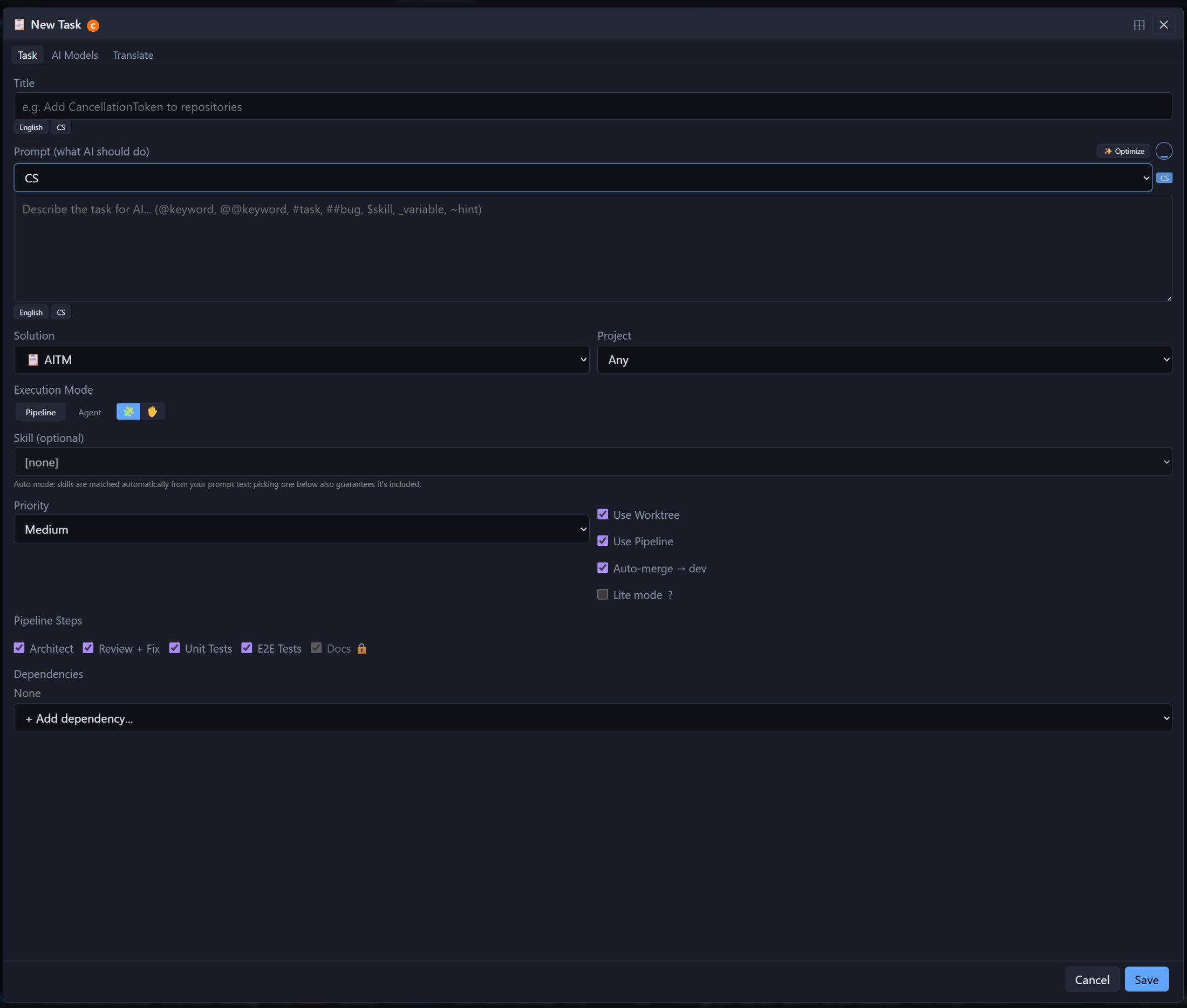
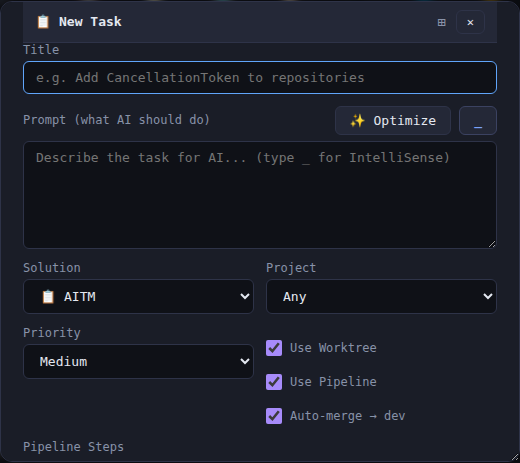
Select a project and click + New Task (or + Task on a project card). The dialog has three tabs — Task (the form itself), AI Models and Translate — and a Save button. Once saved, the task appears as a card in the queue with status pending and starts automatically as soon as a slot is free. Ctrl+Enter saves the task too.
Task tab
- Title — a short name for the task. Required. This is what you'll see in lists and notifications, so make it specific.
- Prompt — what the AI should do. Required. Describe the goal, any constraints, and what "done" looks like. Above it sit the
 Optimize button and a writing-language selector (Auto by default) with a badge showing the language in use.
 - Solution and Project — the tab (solution) and the project the change belongs to. Both are required for a new task.
- Execution Mode — Pipeline (the full step-by-step pipeline) or Agent (one autonomous agent). In Agent mode an Agent Test Gate appears with two checkboxes: Run unit tests and Run E2E tests.
- Skill — next to the mode switch are two small buttons for automatic or manual skill use; in automatic mode skills are matched from your prompt text. The Skill (optional) list lets you pick one skill that is always included.
- Priority — Low, Medium (default) or High. Higher-priority tasks are picked up from the queue first.
- Intent — Bug, Feature, Enhancement or Other. Required; Save refuses the form without it.
- Use Worktree, Use Pipeline, Auto-merge → dev — leave these on unless you know why not. The worktree isolates the task from other in-progress work; Auto-merge merges the finished branch into
devautomatically. - Lite mode — skips the Architect planning step when the coding model is strong enough to plan for itself; with weaker models the full pipeline is used anyway.
- Pipeline Steps — per-task switches for Architect, Review + Fix, Unit Tests and E2E Tests. Docs is locked on and cannot be skipped.
- Dependencies — other tasks that must be done before this one starts.
AI Models tab
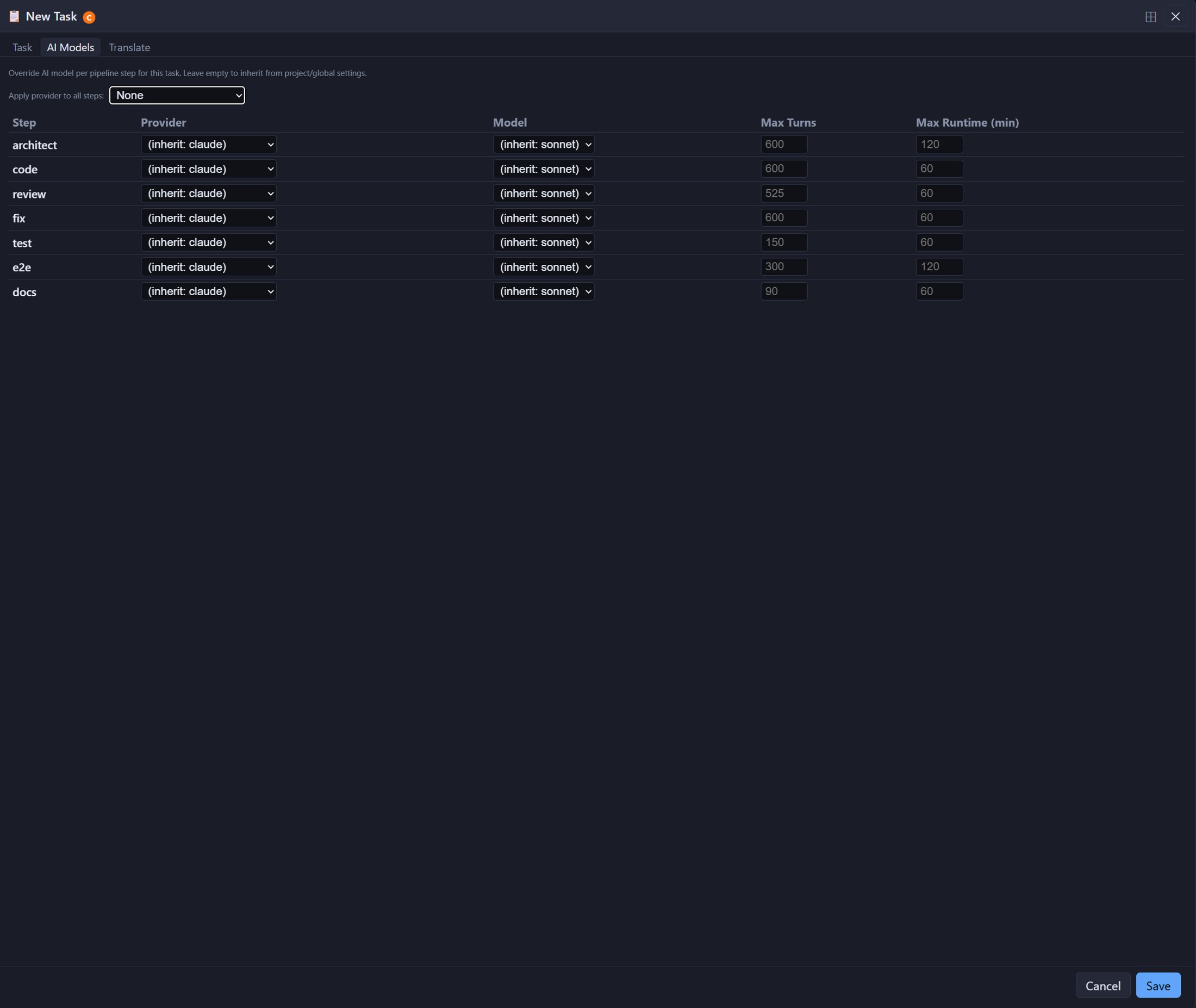
Here you can override the provider and model for each AI step (architect, code, compliance-check, review, fix, test, e2e, docs) for this one task, together with its turn and runtime limits. Compliance-check skips simpler tasks. Anything left empty is inherited from the project or global settings. Apply provider to all steps fills the whole column at once.
Translate tab
Shows the prompt's translation, which you can edit.
Optimize — improving the prompt
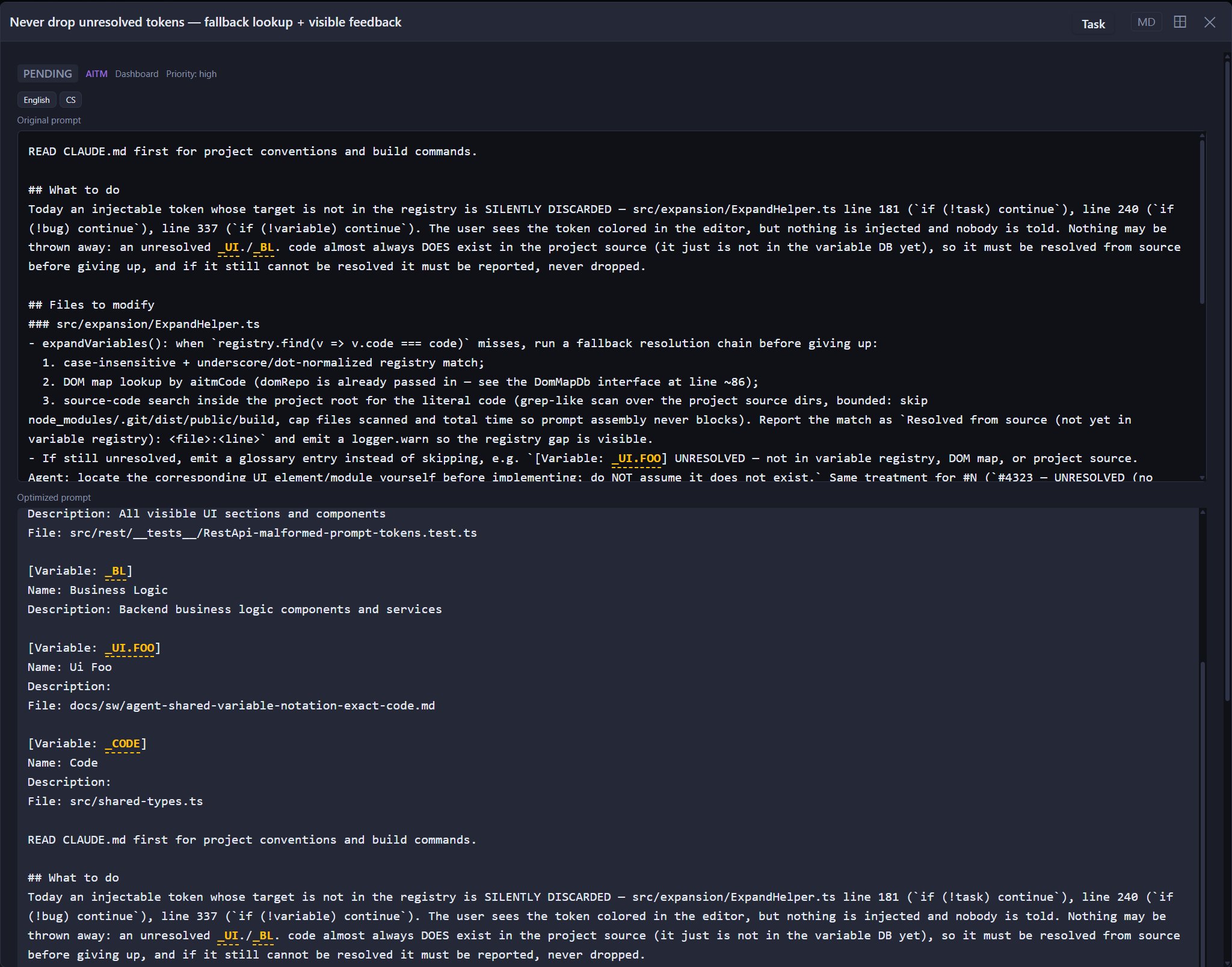
Optimize asks an AI to rewrite a rough prompt into a precise one. Afterwards you can switch between Original prompt and Optimized prompt, open Changes to see what was altered, and the original stays visible under the form as Original prompt (before optimization). The task's detail window later shows both versions, original above optimized.
Editing a task
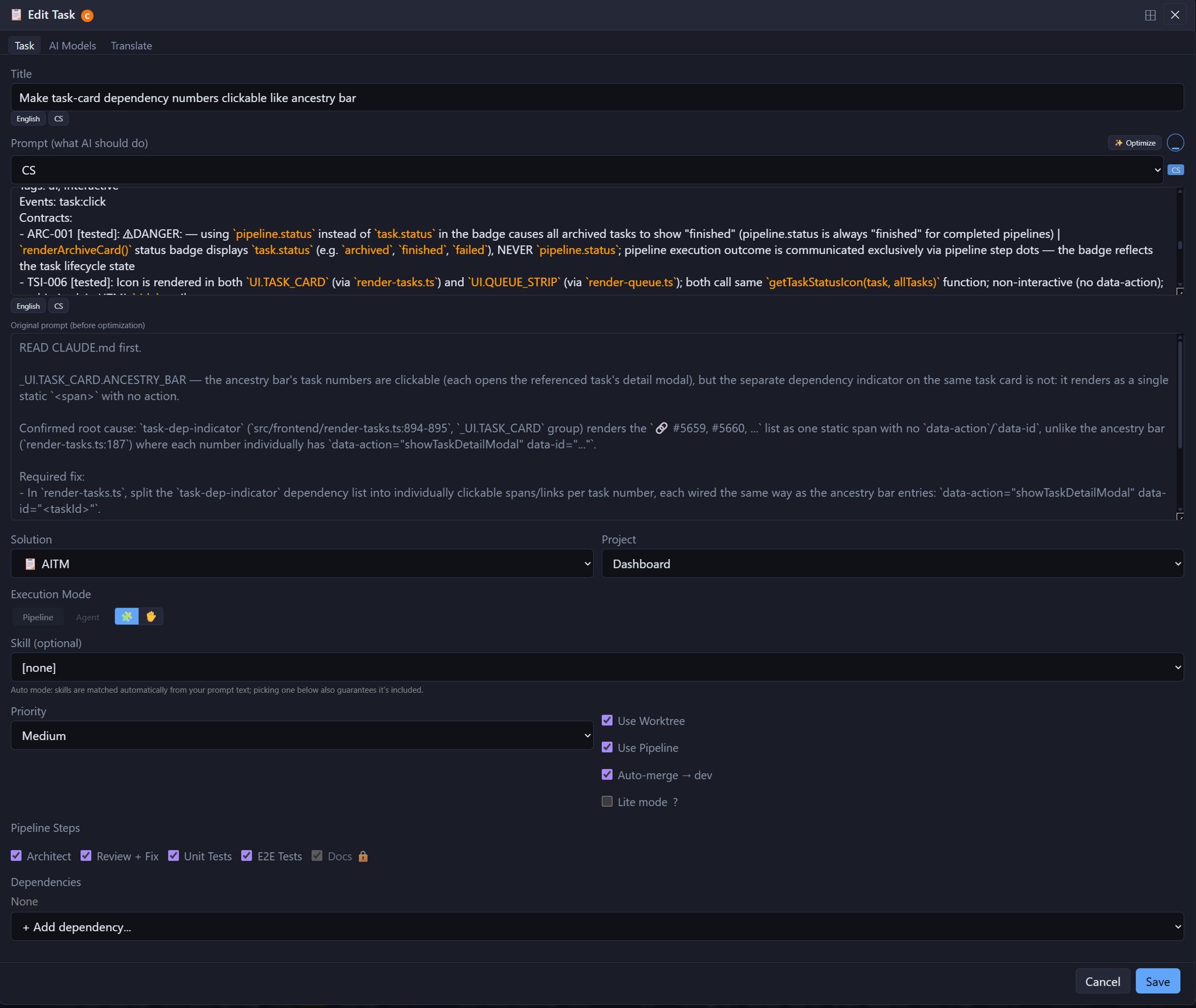
The Edit (pencil) icon on a task card — available while the task is not running — opens the same dialog, titled Edit Task, filled with the task's current values. Change what you need and click Save.
Dependent task chains
If one task's work must happen before another can start (for example, "add the database column" before "use the column in the API"), list the first task under Dependencies. The dependent task waits until its predecessor has merged into dev before it begins, so it always starts from a codebase that already contains the earlier change.
Shortcuts while typing (IntelliSense)
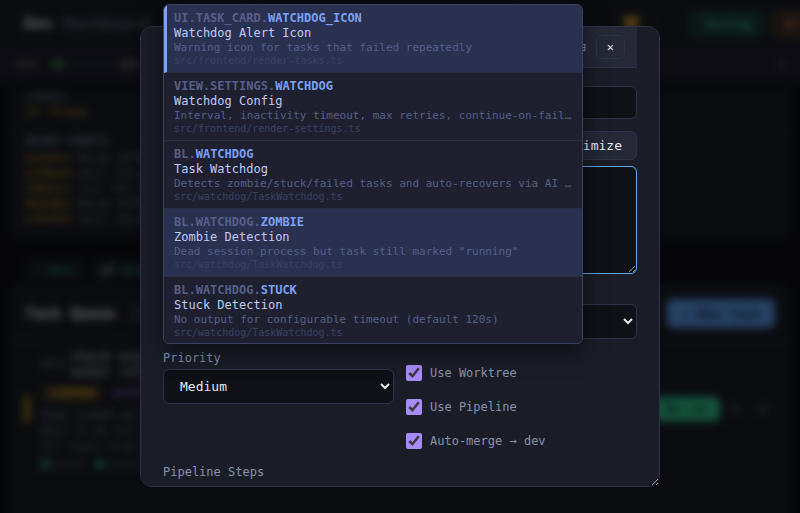
The prompt box (and the Chat and Brainstorm message boxes) offers autocomplete when you type one of these characters:
| Type | To insert |
|---|---|
@keyword | a keyword |
@@keyword | a keyword with its full content |
#task | a reference to another task |
##bug | a reference to a bug |
$skill | a skill |
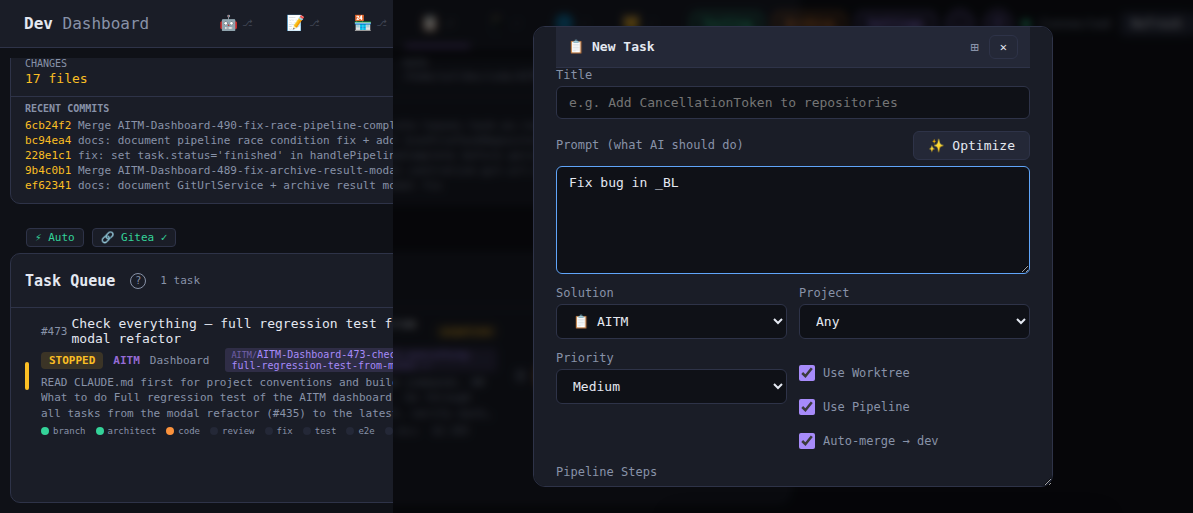
_variable | a variable code — the exact name of a part of your app |
~hint | an entry from the Hint Dictionary |
Start typing the trigger character and a dropdown appears with matching suggestions — pick one to insert it into the prompt.
Tips
- Use
_variablereferences instead of describing code locations in prose — it's faster and unambiguous for the AI. - Split a change into dependent tasks instead of writing one giant prompt when it naturally divides into ordered steps.
- Don't forget the Intent — the task won't save without it.
- A
failedtask keeps its full console output and the reason for failure; read it, adjust the prompt and try again.