Every project AITM manages has a shared vocabulary — a browsable, searchable map of exactly what's in your app. The Variable Explorer is where you browse it, and IntelliSense is how you use it while writing a prompt.
Variable Explorer & IntelliSense
What is the Variable Explorer
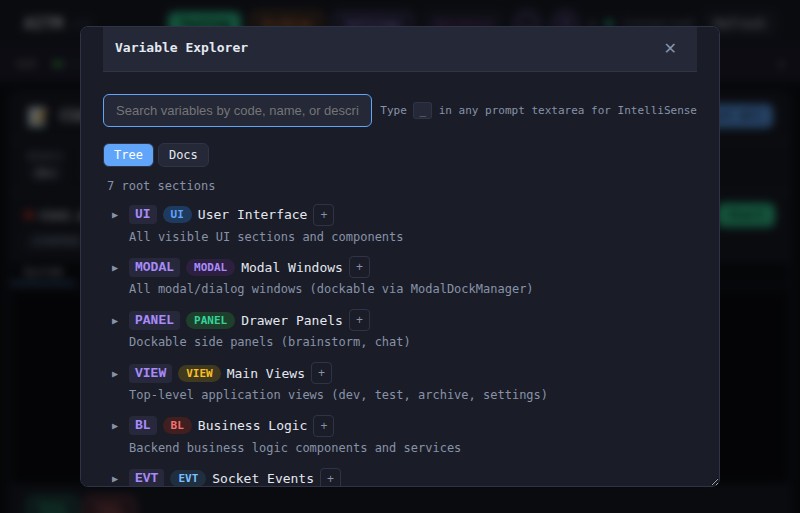
The Variable Explorer is a browsable, full-text-searchable tree of your project's knowledge: business-logic variables (_BL.*), UI variables (_UI.*), views (VIEW.*), the DOM element map (real UI elements tagged with data-aitm attributes), and the hint knowledge base. This is the shared vocabulary you and the AI both use to reference exact parts of the app instead of vague descriptions.
Why it matters
Referencing _UI.TASK_CARD instead of "the task box thing" means the AI finds the right code on the first try — fewer wrong edits, fewer wasted turns.
Browsing and searching
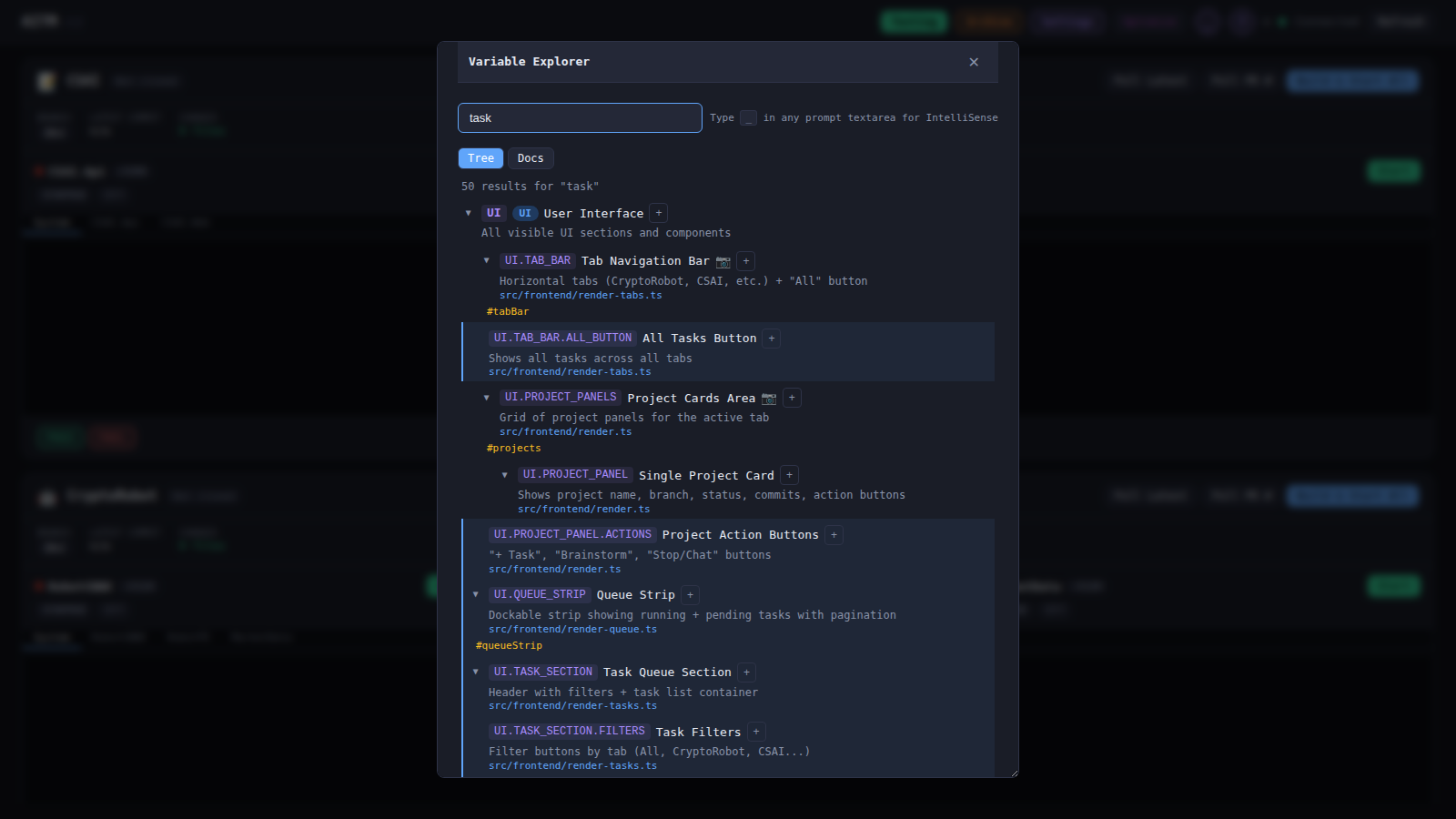
Open the Variable Explorer to browse the full tree, or use full-text search to jump straight to the variable, view, or element you're looking for.
Element detail
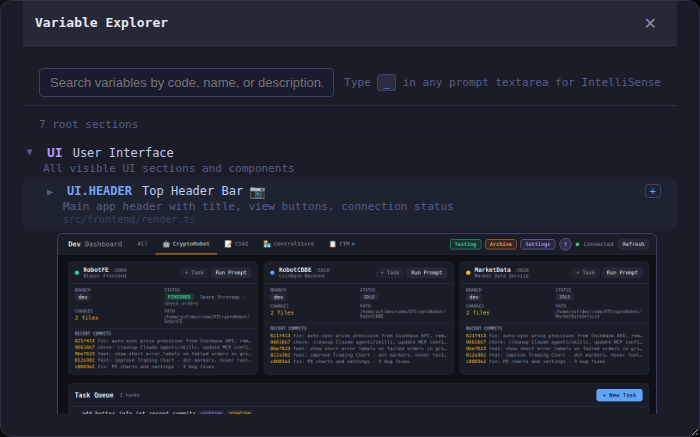
Click a variable or element to see its detail: linked source files, the behavioral contracts governing it, and a screenshot preview of what it looks like in the running app.
IntelliSense autocomplete
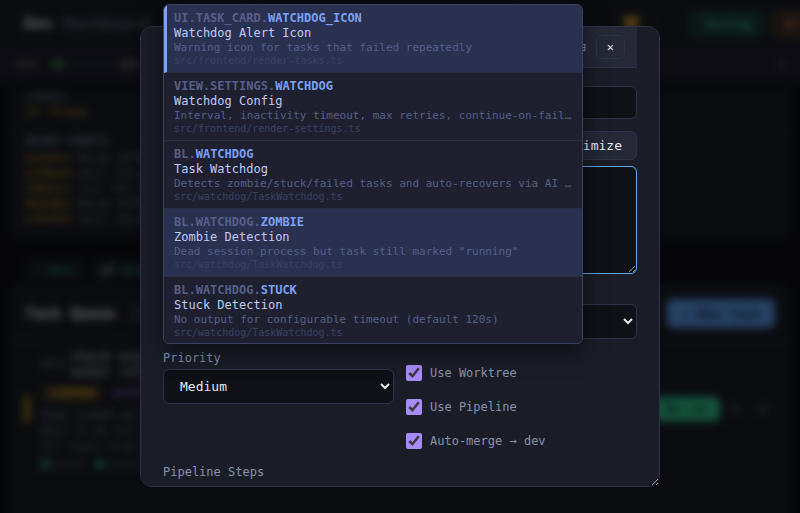
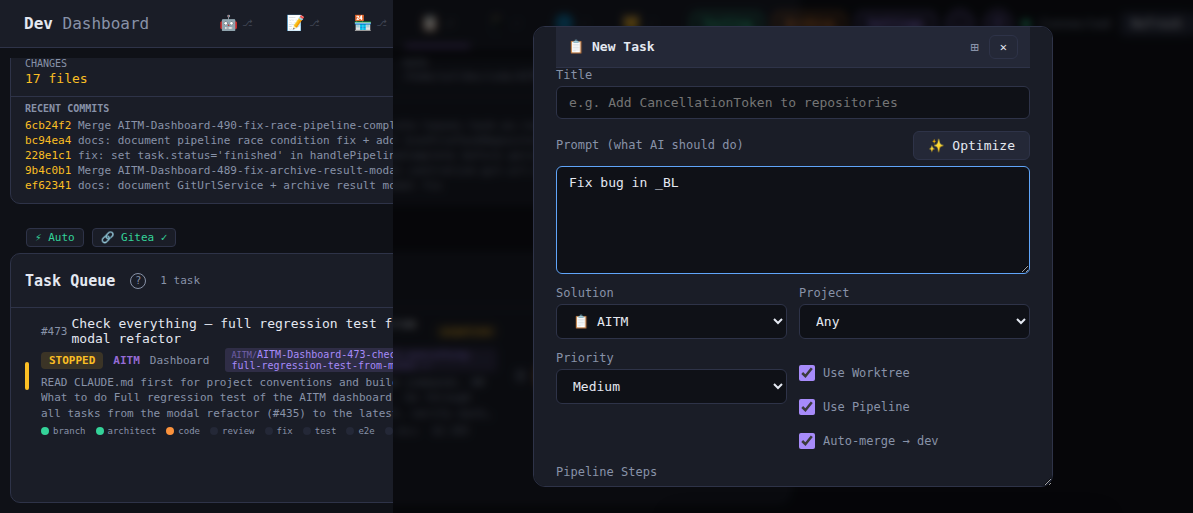
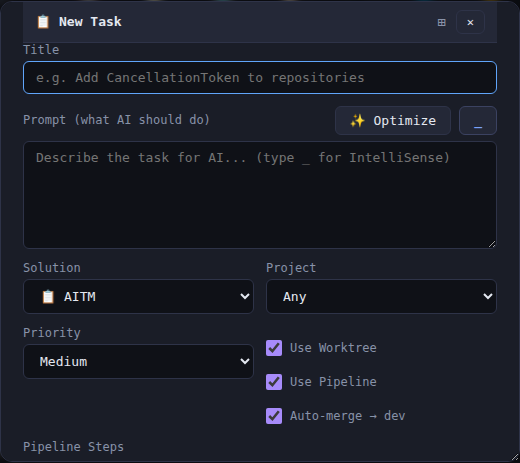
IntelliSense is available in every prompt input — New Task, Chat, and Brainstorm. Start typing a trigger character and a dropdown appears with matching suggestions:
_— variables (_BL.*,_UI.*,VIEW.*)@— saved brainstorm keywords@@— project files#— task references, e.g.#AITM-123
If you'd rather browse than type, the Var button in the New Task modal inserts a variable reference for you without typing the trigger character.
Favorites and the Hint Dictionary filter
The Hint Dictionary now supports marking individual entries as favorites. Favorite variables and terms are surfaced first in the IntelliSense dropdown via a dedicated favorites filter, so you can get back to variables and terms you use often without re-searching from scratch every time.
The Hint Dictionary is also automatically seeded with terms pulled directly from the documentation — keywords mentioned on this and other docs pages are available in IntelliSense without manual entry.
Hint Dictionary history
The Hint Dictionary's change-history panels now support pagination, so browsing history on large projects with a long edit history stays fast and manageable.
Tips
- Check the screenshot preview in the element detail panel to confirm you picked the right element before submitting a task.
- Reference
_UI.*and_BL.*codes directly in your prompts instead of describing UI elements in prose — it's faster and unambiguous for the AI. - Use the Var button in the New Task modal if you'd rather browse and pick a variable than type its code from memory.
- Mark frequently-used variables as favorites and use the favorites filter in IntelliSense to find them faster.