Skills are reusable instruction packs the AI automatically includes in its context in Chat, Brainstorm, or a pipeline step — so you don't have to retype the same guidance every time.
Skills
What a Skill is
A skill is a saved, reusable set of markdown instructions — for example coding conventions, a UX checklist, or a specialized workflow — that the AI automatically includes in its context, so you don't have to retype it every time.
Global vs. project skills
Global skills apply across every project you manage with AITM (for example, general accessibility or coding-standard guidance). Project skills are scoped to one specific project and only apply there (for example, a workflow specific to that codebase's conventions).
Invoking a skill with $CODE
Every skill has a short, auto-assigned code like UX-001. Typing $CODE (e.g. $UX-001) inside a Chat message, a Brainstorm message, or the New Task prompt tells AITM to include that skill's full guidance. AITM expands the reference into a visible block in the prompt, shown as:
[Skill: UX Conventions ($UX-001)]
...full skill instructions...
[/Skill]
You can also just start typing and use the skill picker to search and insert a skill by name instead of remembering its code.
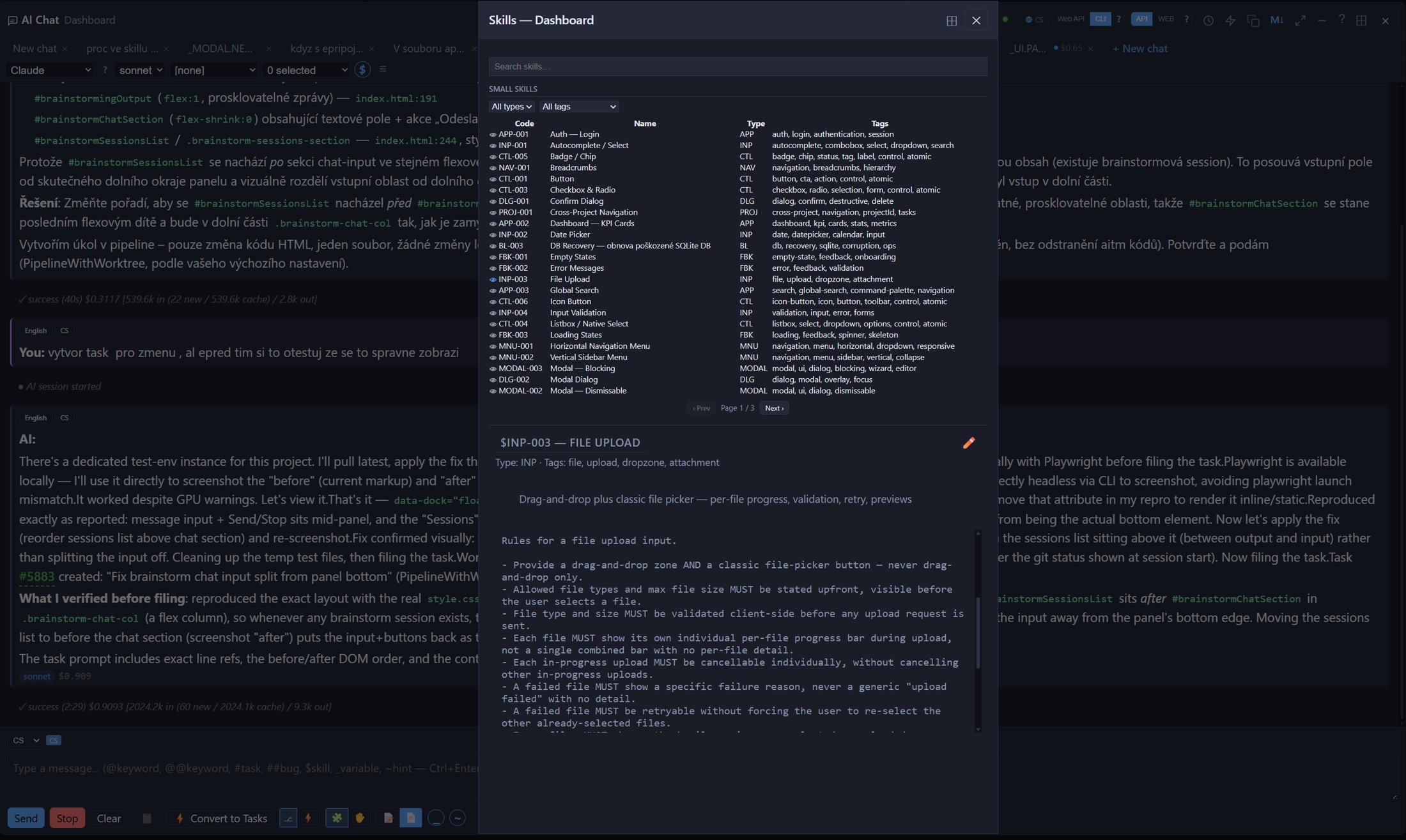
The skills picker window opens from Chat, Brainstorm or the New Task dialog. It lets you search skills, filter them by type and tag, and preview a skill's full text before using it. In the New Task dialog, the Skill (optional) list additionally lets you pick one skill that is always included with the task.
Surfaces
Each skill declares where it can be offered: Chat, Brainstorm, and/or Task (New Task / pipeline). A skill written for one workflow (e.g. a pipeline-only convention) won't clutter the picker in a surface where it doesn't apply.
Settings → Skills tab
Lists every skill available to you, with:
- Enable/disable per skill
- Always-On skills — mark a skill as always included for a project, without needing to reference it manually every time
- Auto Skill toggle — when on, AITM automatically matches relevant skills to your task/prompt based on its content, in addition to anything you reference explicitly
- Max skills per prompt — a cap on how many skills get included in a single prompt, so context doesn't get overloaded
Creating and editing skills
A skill is a markdown file with a small metadata header (frontmatter) specifying its name, description, type (used to auto-assign its code), tags (for search/auto-matching), which surfaces it appears on, which AI provider it applies to, and whether it's a "danger mode" skill (one that can make risky changes, e.g. writing files or restarting tasks — flagged with a warning before use). Skills can be created and edited directly in an inline editor inside AITM. For larger, more detailed skills, a directory format is supported: the main instructions live in one file, with additional reference material in a separate folder that the AI reads on demand only if it needs the extra detail — keeping the default prompt lean.
Practical workflow examples
A "UX Conventions" skill applied automatically whenever a UI change is requested. A project-specific "Release Notes" skill invoked with $CODE to generate a formatted changelog. An "Accessibility" skill marked Always-On so every task automatically gets accessibility guidance without you remembering to add it.
Tips
- Mark broadly-applicable skills (coding standards, accessibility) as Always-On so you never have to remember to reference them.
- Use the skill picker instead of memorizing codes — codes are for quick reuse once you know a skill well.
- If a skill's guidance ever conflicts with something AITM already knows is a hard rule for your project, the hard rule always wins.