Once a task finishes running, you'll want to know what actually happened — what changed, whether it worked, and if something went wrong, how to move forward.
Reading Results & Archive
Opening a finished task's result
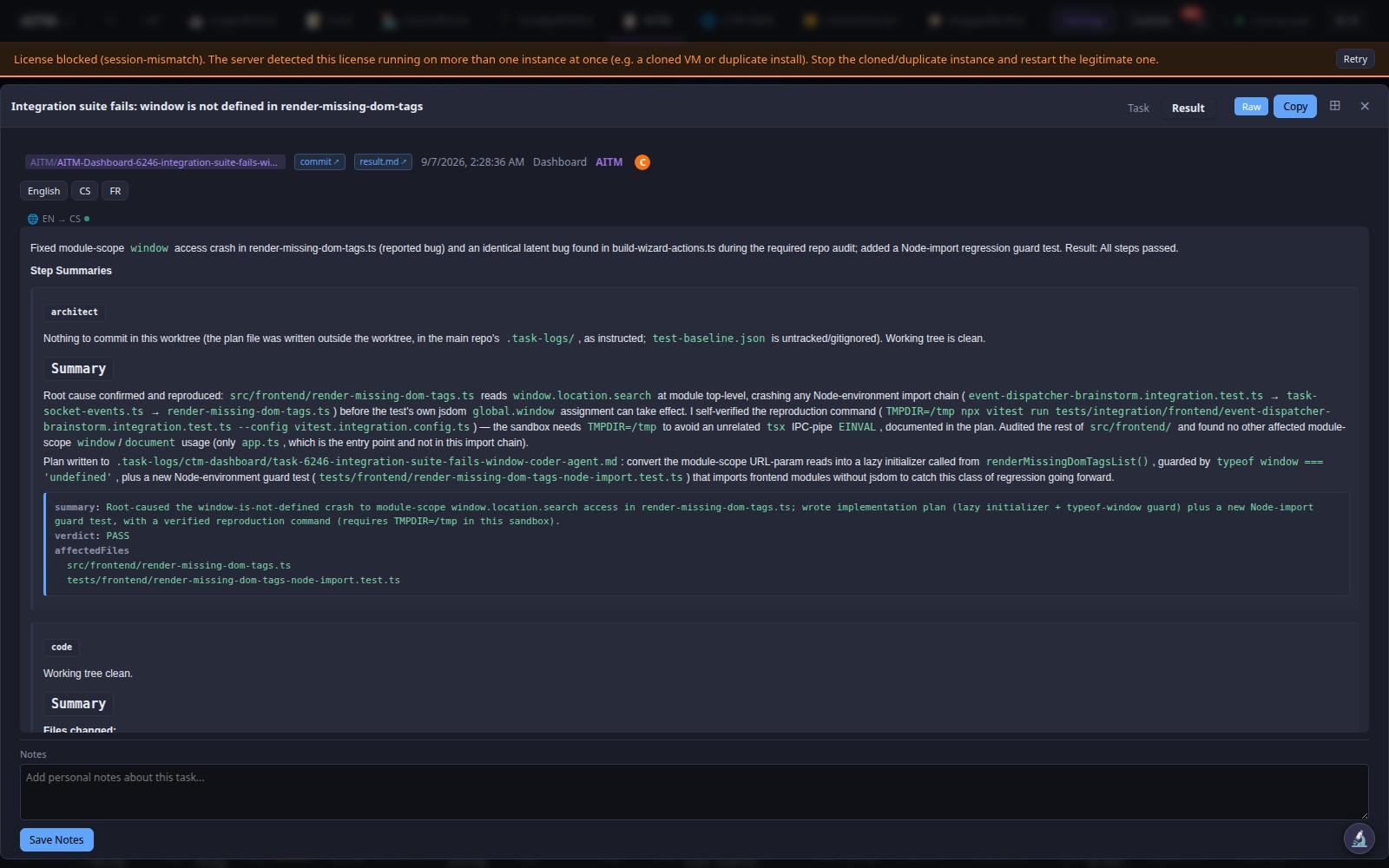
Click any task card — running, finished, or archived — to open its result view. You'll see:
- A summary of what was done and why
- The full list of files that were changed
- Pipeline step results (pass/fail per step)
- Any screenshots captured during the run, if the optional Snapshot step was enabled
- Metadata: timing, which AI provider/model handled it, and a link to the Git commit
Understanding verdicts
Two kinds of automated checks produce a verdict. The unit test verdict is a straightforward pass or fail, based on your project's existing test suite. The end-to-end (E2E) verdict has a few more possible outcomes, since E2E tests exercise the real running app:
| Verdict | What it means |
|---|---|
PASS | All end-to-end scenarios passed |
FEATURE_BUG | The E2E test found a genuine bug in the implemented feature |
ENHANCEMENT_REQUEST | The tests revealed the feature works but is missing something worth adding later |
DATA_ISSUE | The failure was caused by test data or environment state, not the code itself |
ENVIRONMENT_ERROR | The test environment itself had a problem (e.g. a service wasn't running) — not a reflection on the code |
UNKNOWN | The result couldn't be classified automatically and needs a human look |
Handling a failed task
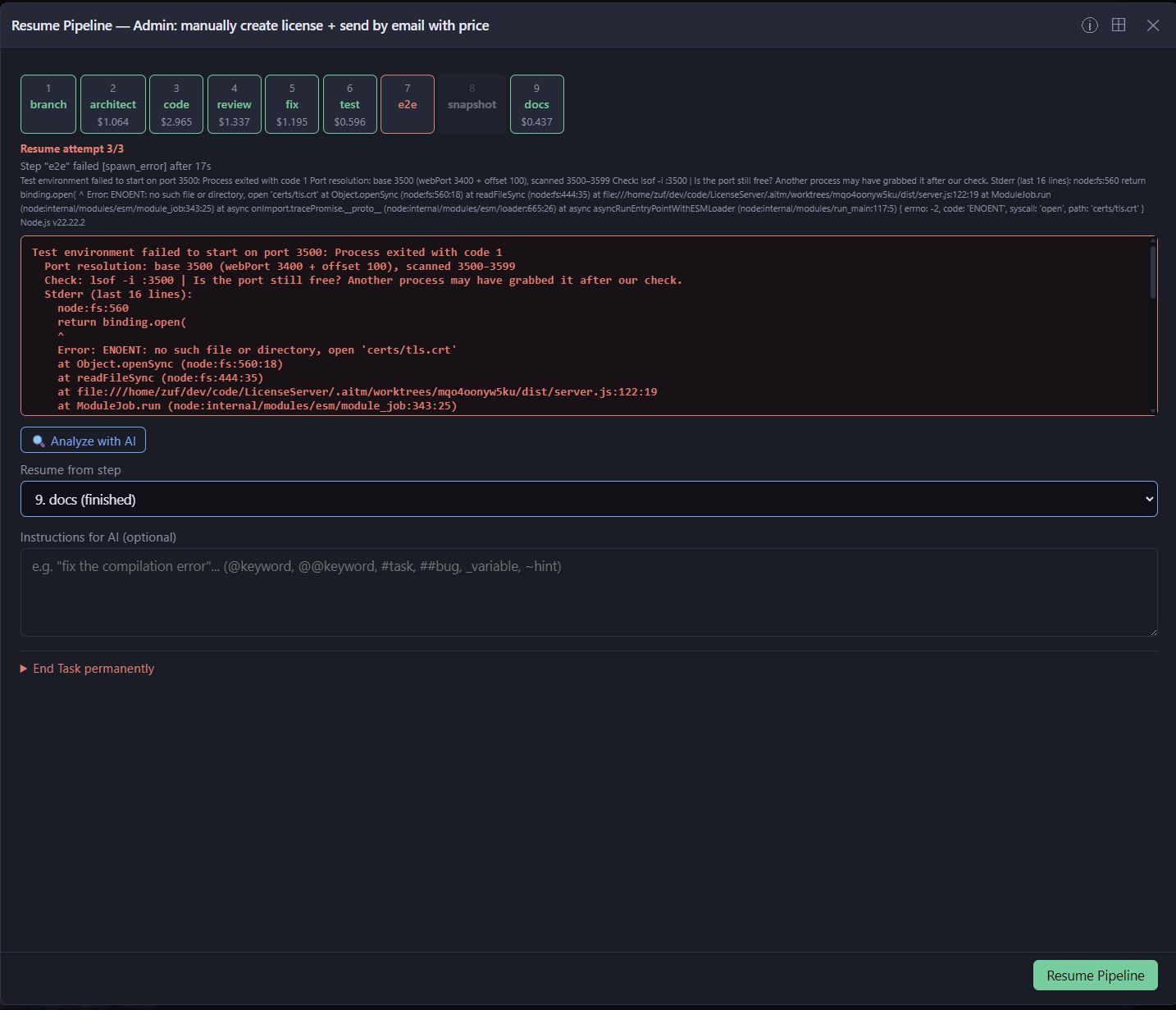
A failed status means the pipeline hit something it couldn't resolve on its own within its retry budget. Open the task to see which step failed and the recorded reason, plus the watchdog's diagnosis if it attempted automatic recovery first. From there, you can typically resume the task from the failed step (or an earlier one, if the fix needs to start further back) rather than starting over from scratch — AITM preserves everything that already succeeded.
Handling a conflict
A conflict status means AITM's automatic Git merge hit a genuine conflict — two changes touching the same lines in incompatible ways — that its AI-assisted resolution attempt couldn't safely settle on its own. When this happens, AITM shows you exactly which files conflicted so you can resolve it; it will never guess and silently pick one side when both changes look intentional.
The Archive
Once a task finishes and its change has been merged into dev, it is filed in the Archive — a searchable record of every completed task, most recent first, with its title, project, completion date and final status. It is your permanent audit trail.
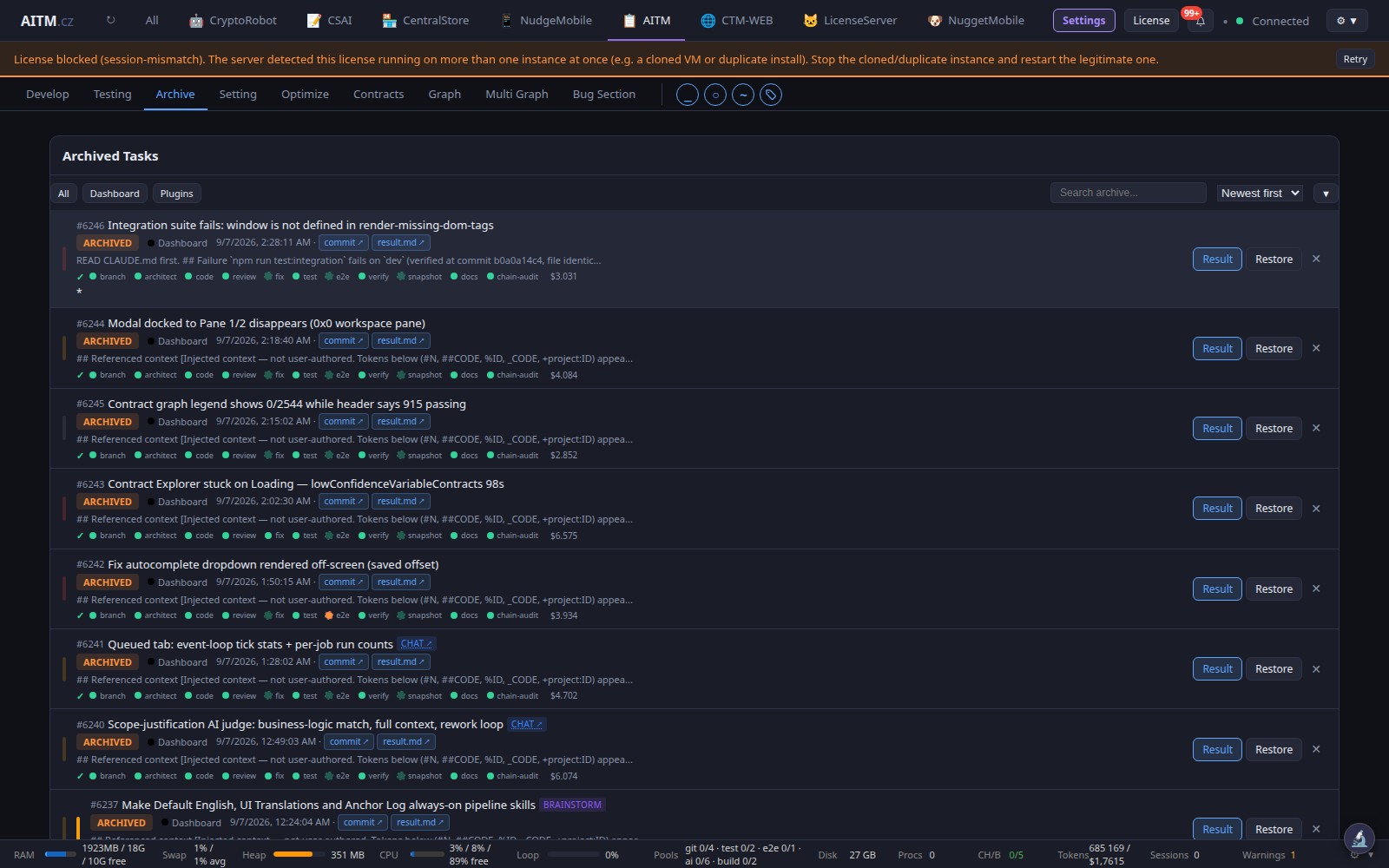
In the Archive you can search and filter tasks (by project, date or status) and open the full record of any of them: the original prompt, the pipeline steps, the review verdict, test results and a plain-language summary of what changed, written by the Docs step. An archived task is not locked away — Restore puts it back in the queue. For a variation on old work, a fresh task that reuses the archived prompt as a starting point is usually cleaner.
Tips
- If a task fails, resume it from the failed step instead of starting over — everything that already succeeded is preserved.
- If the AI gets stuck mid-task, the watchdog resumes it automatically up to a limited number of attempts before marking it
failed. - Because every task leaves a full record in the Archive, it doubles as documentation of why your project looks the way it does.