Chat lets you ask an AI questions about your project — how something works, where a piece of logic lives, what a good approach would be — without creating a task. It's the tool to reach for when you want an answer, not an edit.
Chat
The Chat window
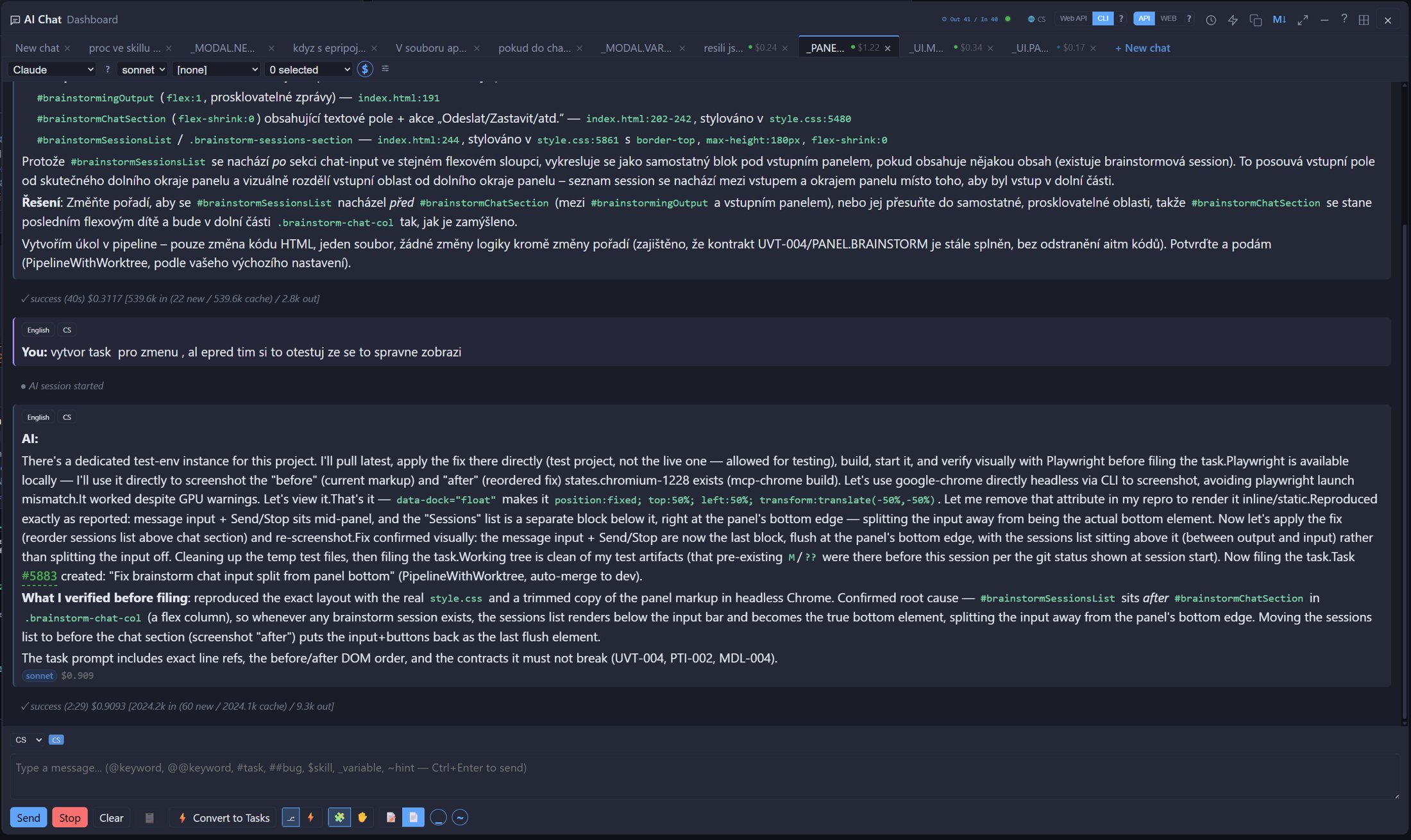
Click the Chat (speech bubble) button on a project card. The window has conversation tabs along the top (with + New chat), and under them selectors for the provider, the model and a skill. The header also holds the Web API / CLI engine toggle, the conversation history button and the dock-position picker. At the bottom are a writing-language selector with a badge, the message box, and a row of buttons: Send, Stop, Clear, a summarize button and  Convert to Tasks. Send a message with Send or Ctrl+Enter.
Safe mode
By default Chat runs in Safe mode — the AI works with read-only tools, so it can explore and explain your codebase but does not change it. The toggle in the header switches Safe mode off; leave it on. If you want changes made, convert the conversation into a task so the work gets worktree isolation, review and tests.
Contract-aware answers
Before answering, Chat receives a current summary of the project's relevant contracts and variables, so answers are grounded in your project's actual state rather than guessed.
Clickable contract and skill chips
Whenever a bare contract ID (e.g. PL-001) or a skill reference in the form $SKILL-NAME appears in an AI reply, Chat renders it as a clickable chip. Clicking a contract chip opens its full detail — files covered, danger zones, and related tasks — and clicking a skill chip shows that skill's full content.
Skills, engine and language
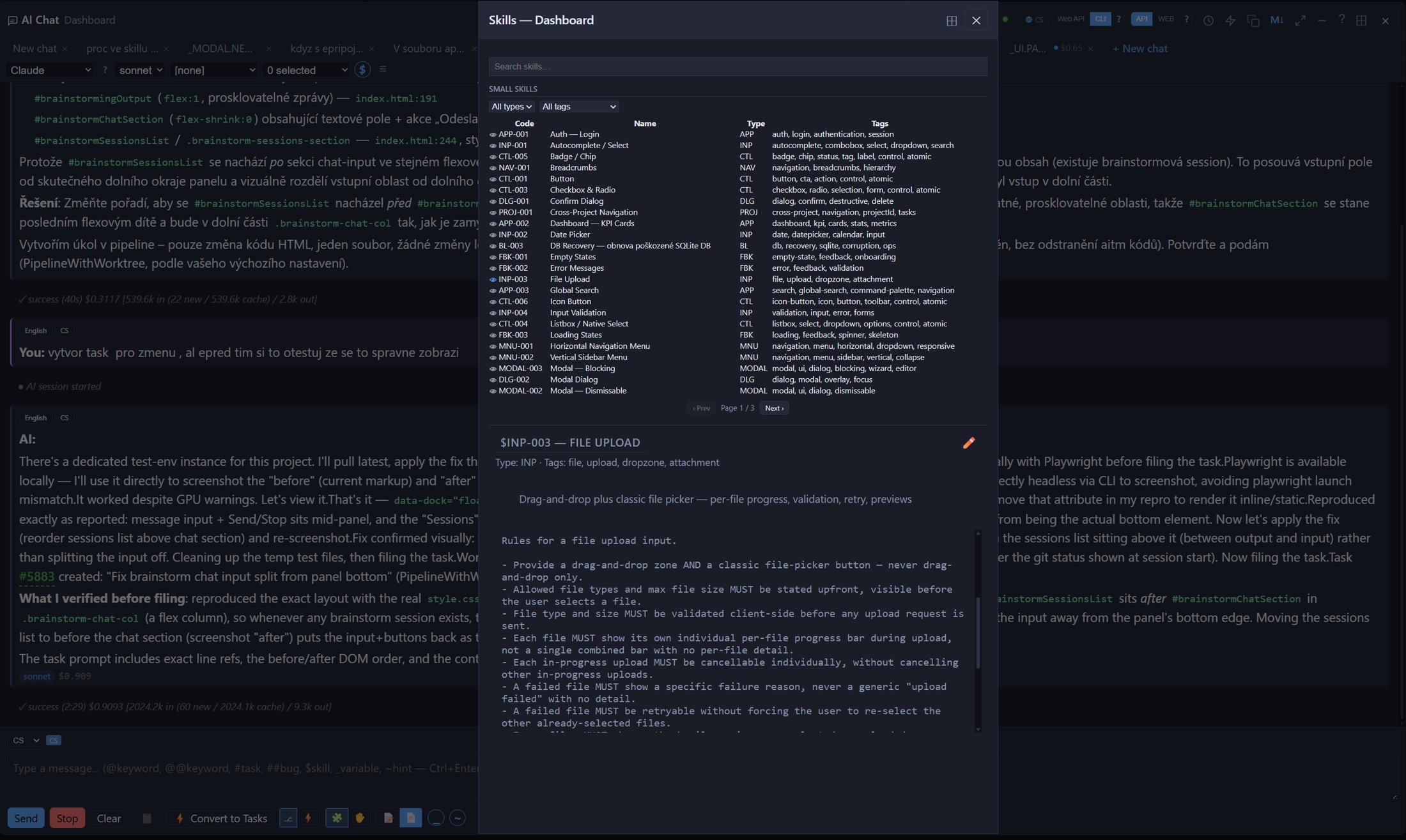
- Skills — the skill selector applies a predefined instruction template to the conversation; you can edit the selected skill or create a new one next to it. The skills picker window lets you search skills, filter them by type and tag, and preview a skill's full text before using it. You can also pull a skill into a message by typing
$. See Skills. - Engine toggle (Web API / CLI) — Web API talks to the provider's API directly and works with every provider; CLI runs the
claudecommand-line tool and works with Claude only. "Web API" does not mean a web browser. - Writing language — the selector above the message box sets the language you write in; the badge next to it shows the one in use.
Chat-scratch: disposable worktree for quick experiments
Alongside Convert to Tasks, you can also launch a chat-scratch task straight from a Chat conversation — a task with source chat-scratch that spins up a disposable, isolated worktree just for a quick investigation or experiment. Unlike a regular task, it isn't meant to be merged back into dev — it lets you have the AI try or explore something without any risk of polluting the main worktree, and you simply discard it once you're done.
History and cost
Every conversation is saved per project; open the history list to revisit or continue a previous one. The AI remembers earlier messages in the same conversation, and switching models mid-conversation is fine. Each AI reply may show a small cost indicator — an estimate based on what the provider reports, not an invoice.
Convert to Tasks
If a chat reveals a concrete piece of work, click Convert to Tasks. The AI can also propose a task on its own inside a reply: the proposal offers Create Task, ✎ Edit (adjust it first) and Cancel, plus a choice between Agent and Pipeline mode for the new task. Create Task opens the New Task dialog pre-filled with the proposal, so you don't have to retype anything.
Docking
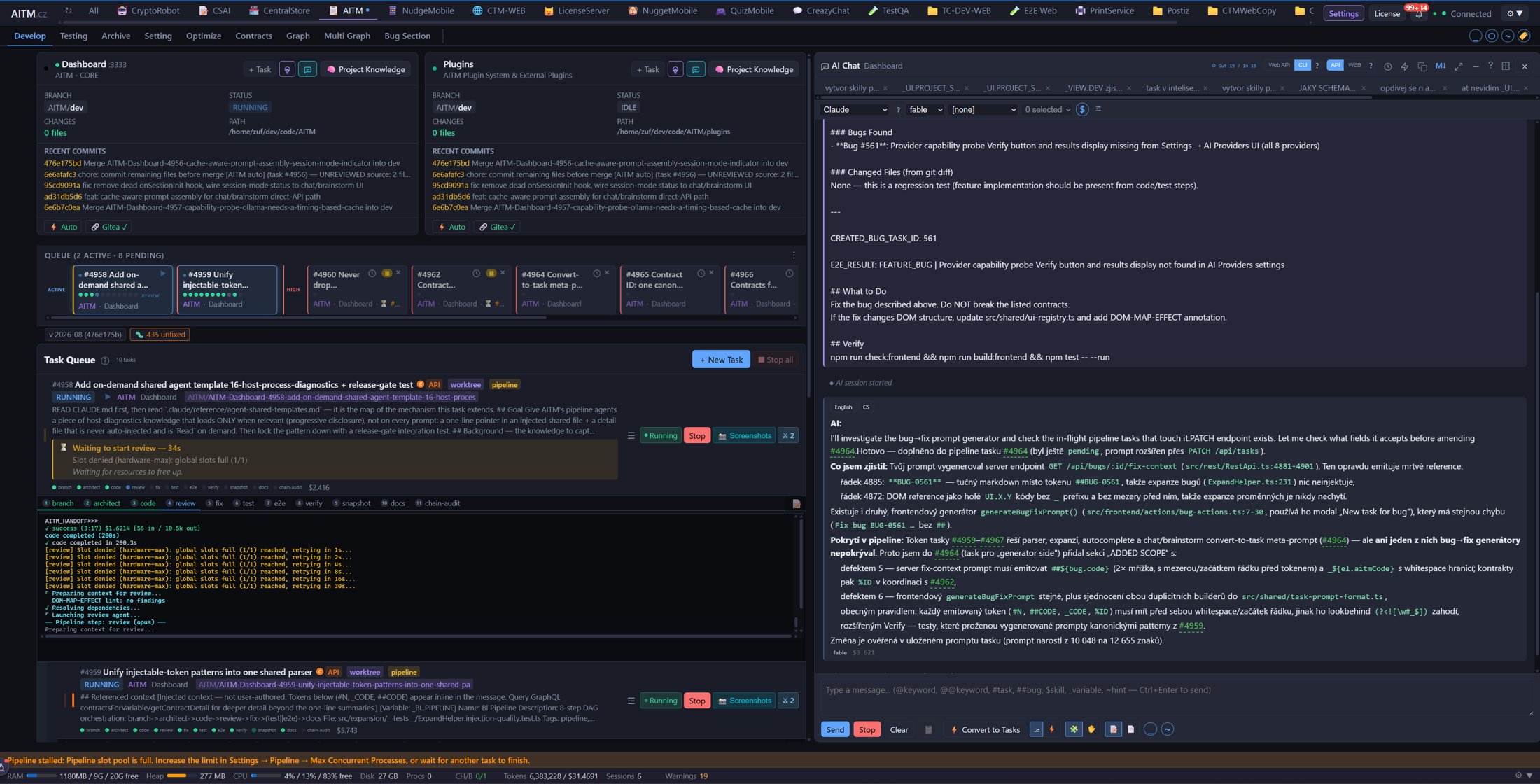
The dock picker in the header places the window: floating, or docked left, right, top or bottom — so you can keep chatting while watching tasks run.
Typing shortcuts
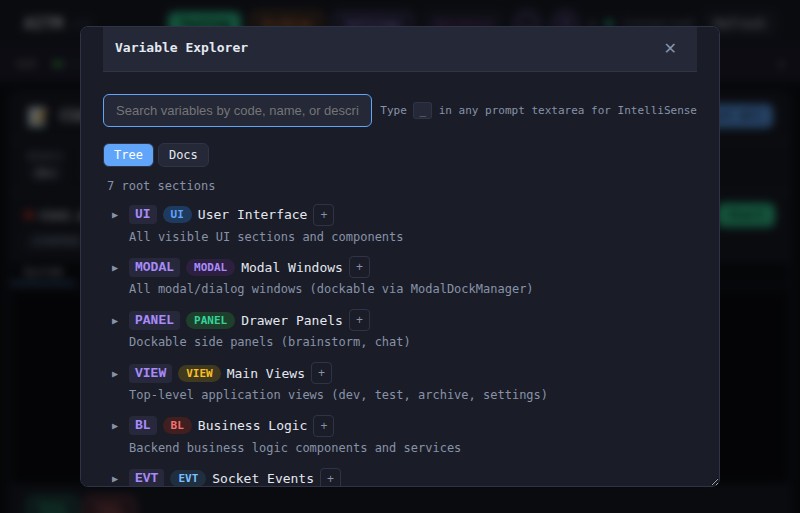
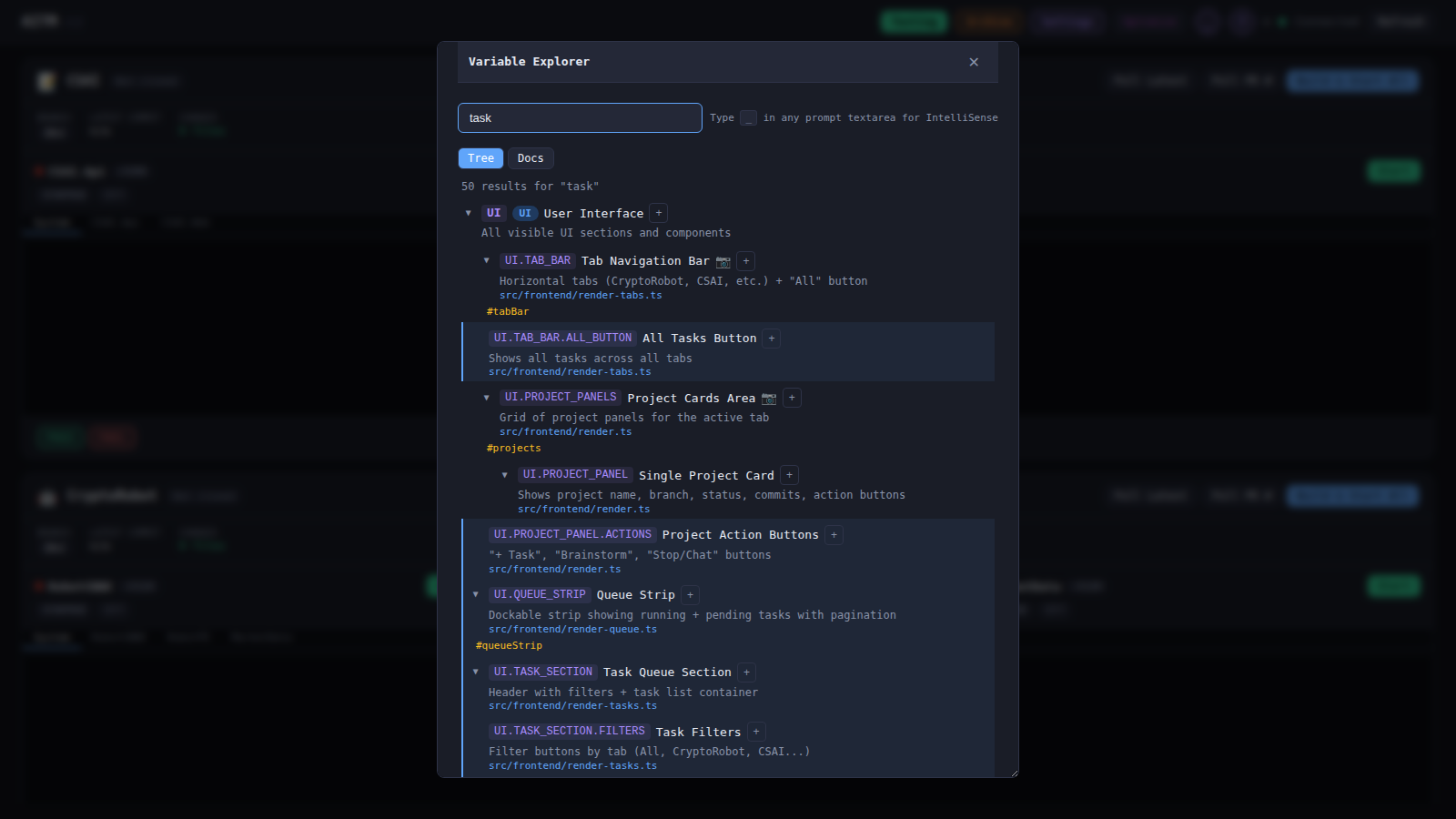
The message box supports the same autocomplete as the New Task prompt: @keyword, @@keyword, #task, ##bug, $skill, _variable and ~hint — see Creating a Task. Use them to point the AI at exact variables or tasks instead of describing them.
Tips
- Chat doesn't edit your project's code — if you want changes made, convert the conversation into a task or create one directly.
- Use Chat to explore and refine an idea, then Convert to Tasks once you know exactly what you want built.
- Watch the cost indicator on long conversations — starting a fresh conversation is often cheaper than continuing a very long one.
Related: Brainstorm — use Brainstorm for open-ended planning with several task proposals as the output, and Chat when you already have a specific question.