This page lists only the settings AITM needs to run correctly. Everything else has a sensible default and can wait.
Setup Essentials
Rule of thumb: if a row below is not done, tasks will either not start, will fail on the first AI step, or will not merge. Everything not on this page is optional.
1. Before you open the dashboard
| What | Where | Why |
|---|---|---|
| Node.js 24+, npm, Git on the machine (or Docker) | your OS | AITM is a Node.js server; pipeline steps shell out to git. |
claude CLI installed and logged in (claude auth login) | terminal | The default AI provider spawns the Claude CLI. Without it every AI step fails immediately. |
npm install then npm run setup:e2e (once) | repo root | Installs dependencies and the Playwright Chromium used by the E2E step. |
config.json created from config.example.json | repo root | The server refuses to start without it. Minimum fields: port (3333), host, one tabs[] entry with one project, and sandboxRoot. |
Start with aitm start (or npm run dev in development) | terminal | Starting any other way bypasses the instance guard and the restart supervisor. |
Docker instead of a local install: use the full-pipeline compose file and .env from release/docker/. The same checklist applies once the container is up — the only difference is that the Claude API key or OAuth login is done from Settings → AI Providers instead of the terminal. The Docker install now offers a direct button to install the claude CLI (the same button also exists in Settings → AI Providers as a fallback).
2. Add your project (Settings → Projects & Memory)
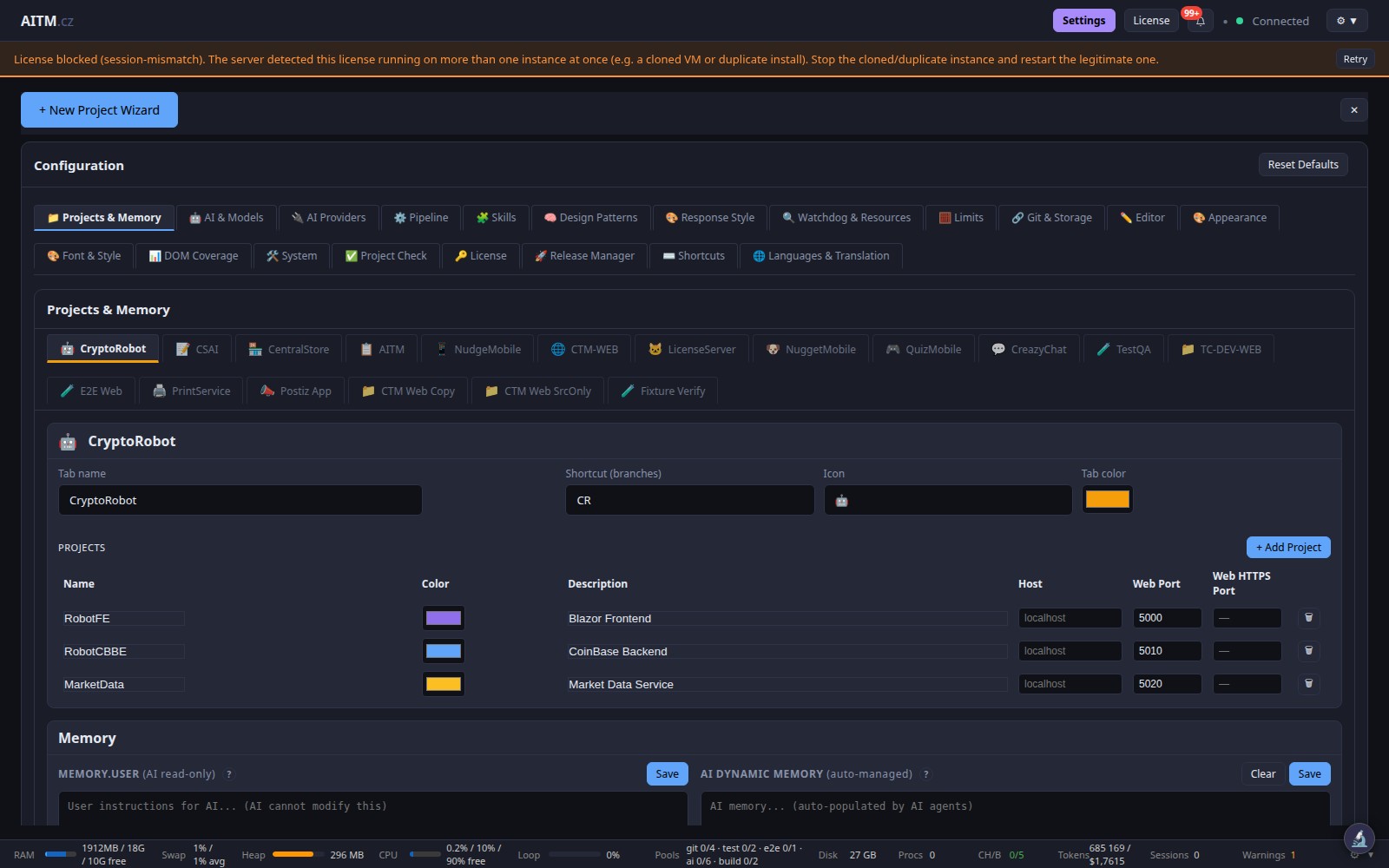
| What | Where | Why |
|---|---|---|
| Tab — name, shortcut, icon, colour | Projects & Memory → tab header | A tab groups related projects. Every task belongs to a tab. |
| Project — Name, Description, Host, Web Port | Projects & Memory → project row | Web Port is what the E2E step opens in the browser. Wrong port = E2E cannot reach the app. |
Project path must be a Git repository with a dev branch | your disk | Tasks branch from dev and merge back to dev. No repo → the Branch step fails. |
CLAUDE.md in the project root | project repo | The first thing every agent reads. Without it the AI works blind. |
3. Connect an AI provider (Settings → AI Providers)
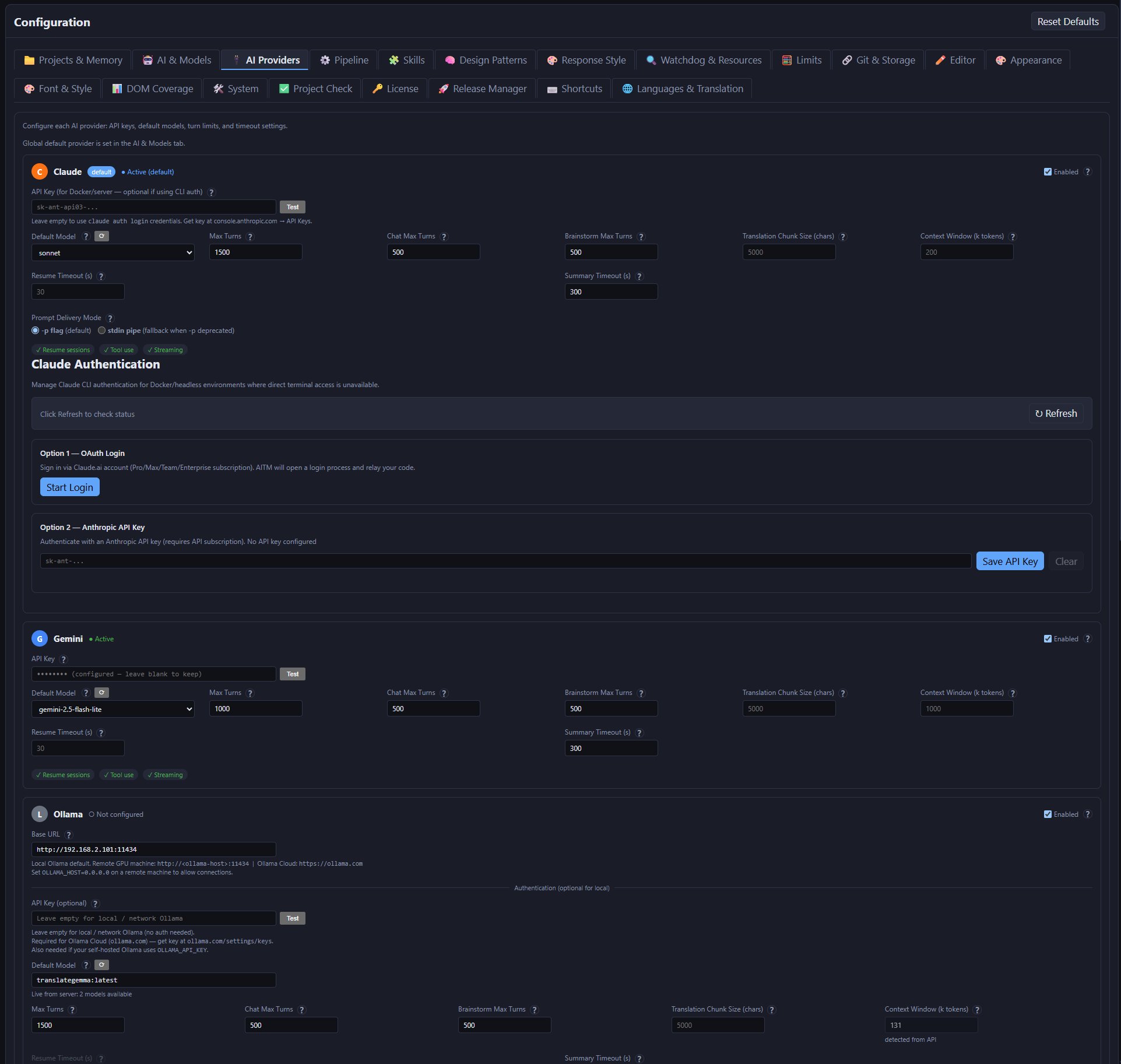
Claude enabled + either CLI login or an API key. Leave the key empty when the machine already has claude auth login; fill it in for Docker/headless servers. Click Test to confirm. Optional providers — Gemini, DeepSeek, OpenAI, NVIDIA, Ollama, Web Chat (Playwright) — have their own cards; enable only what you have credentials for. A disabled provider is never selected.
4. Pick the default models (Settings → AI & Models)
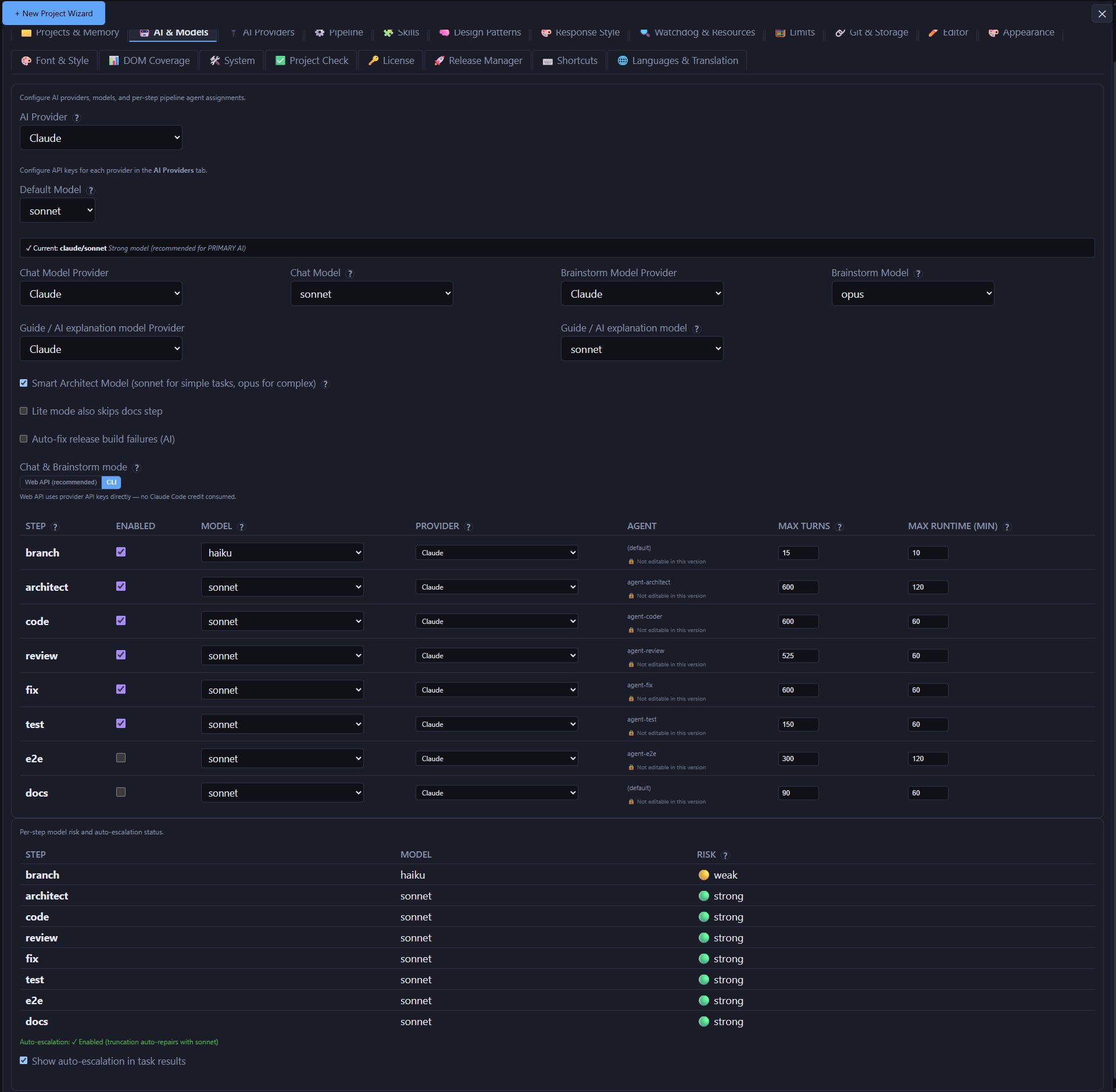
AI Provider (global default) and Default Model, Chat Model, Brainstorm Model. Chat and Brainstorm run far more often than the pipeline — a cheaper model there saves the most money. The step table below includes branch, architect, code, compliance-check, review, fix, test, e2e, snapshot and docs; set Model, Provider, Max Turns and Max Runtime (min) where applicable. Raise the limits only for very large repos.
5. Pipeline behaviour (Settings → Pipeline)
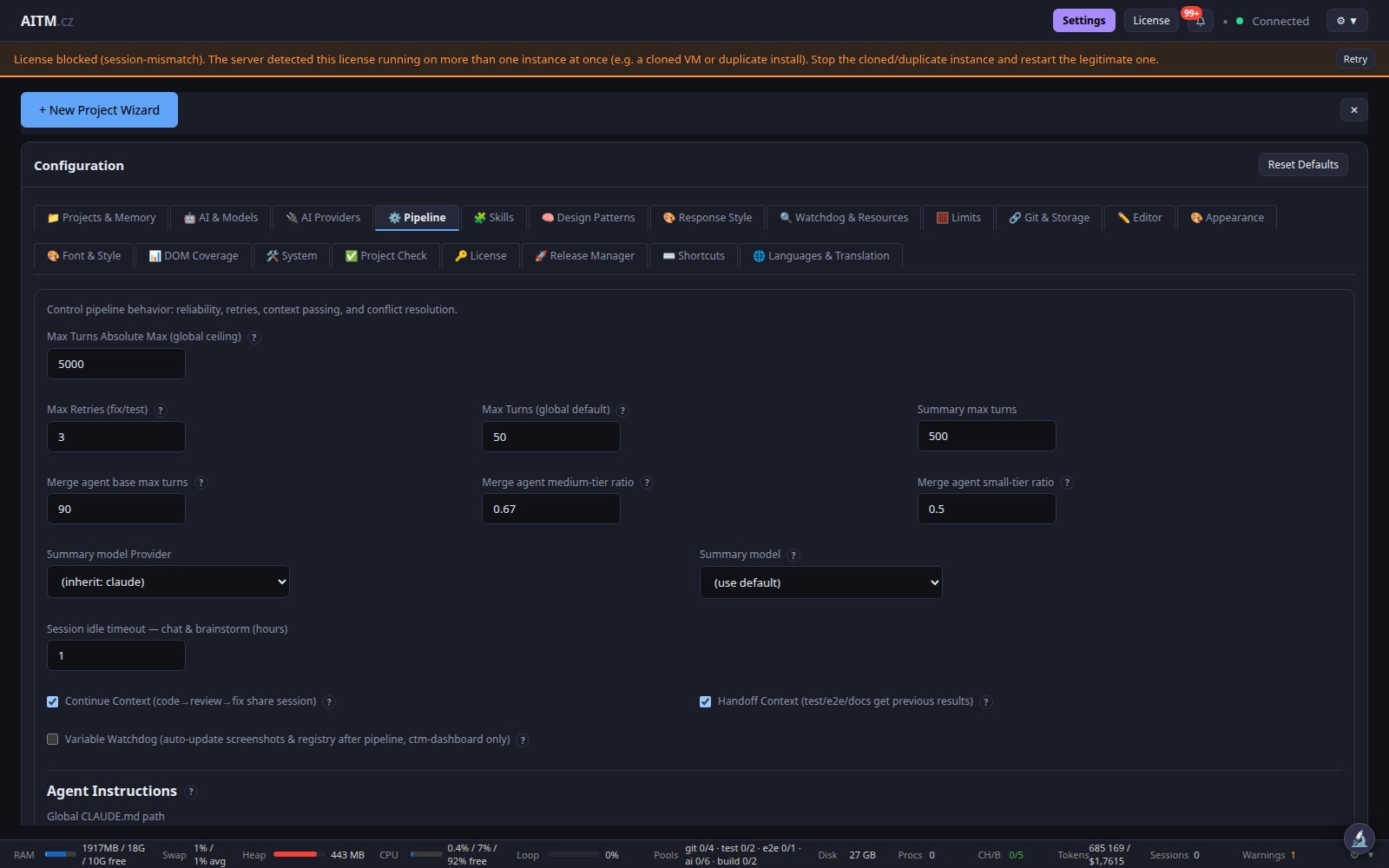
Max concurrently running tasks (global) — recommended 2 on a 16 GB machine. Keep Continue Context and Handoff Context on — later steps see what earlier steps did. Max Retries (fix/test) sets how many times the fix loop runs before the task is marked failed. Optional: Global Projects.md path — one instruction file injected into every project's pipeline.
6. Git and merging (Settings → Git & Storage)
Push remote (default origin) must exist in every project repo. Server restart after self-merge — manual (default) waits for you to click Restart in the header menu.
7. Licence (Settings → License)
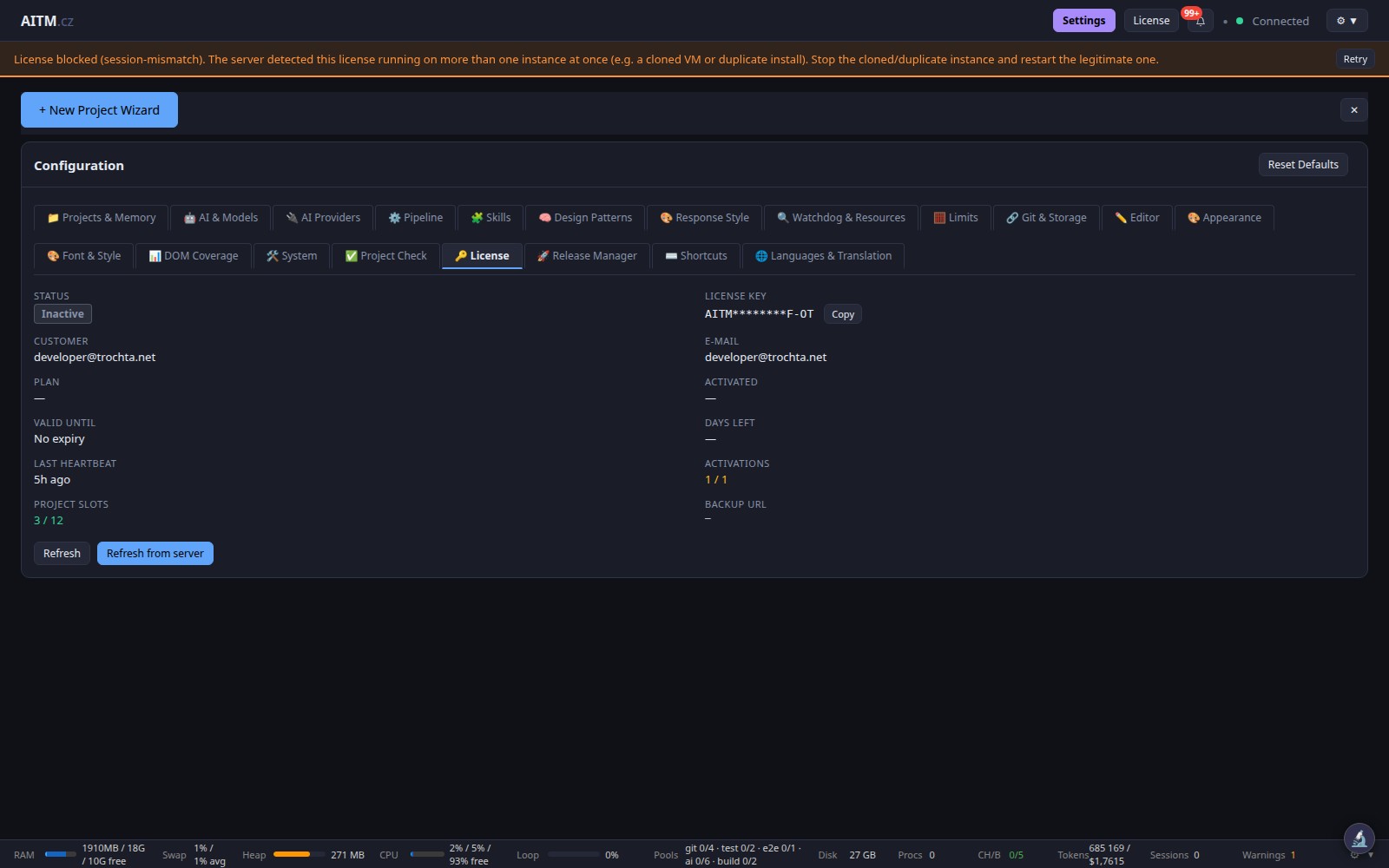
Activate a licence key or start the free 3-day trial (header License button, or Settings → License). Without an active licence the pipeline queue does not admit tasks. A slot is a project, not a running task: each project under the licence consumes one slot (Project Slots shows used / max). Running the same key on two machines triggers the "License blocked (session-mismatch)" banner — see Glossary & FAQ.
8. Resources (Settings → Watchdog & Resources and System)
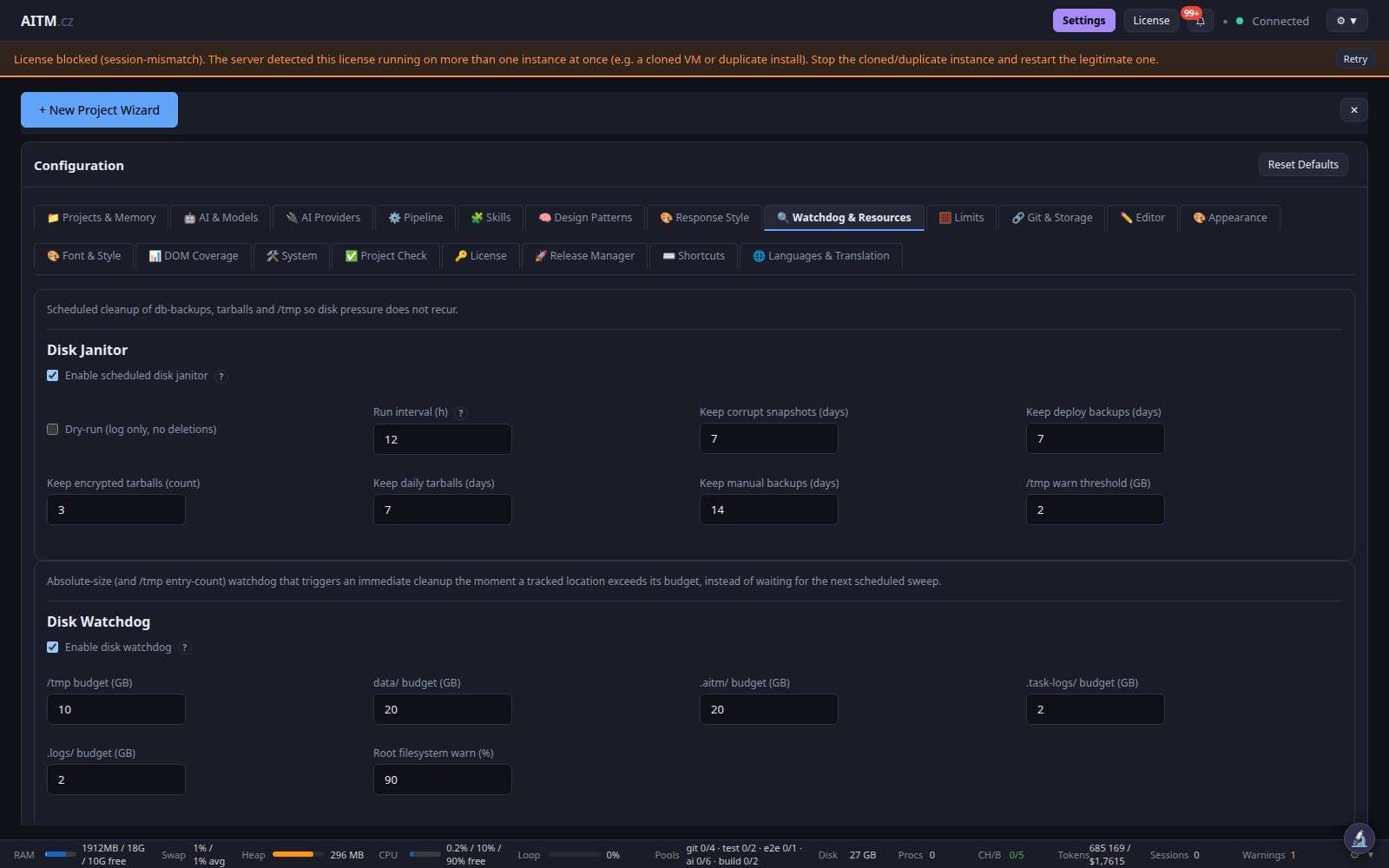
Keep Disk Janitor and Disk Watchdog enabled so a full disk never stops the pipeline. Keep e2eInstances (config.json) at 1 unless you have ≥ 8 cores / 16 GB.
9. Language (Settings → Languages & Translation)
UI language changes the dashboard only. Primary/secondary language for AI output lets you write prompts in another language while the AI reads and writes code in English.
10. First boot: credentials and license activation
After the server's first successful boot, a one-time modal summarizing your login credentials appears.
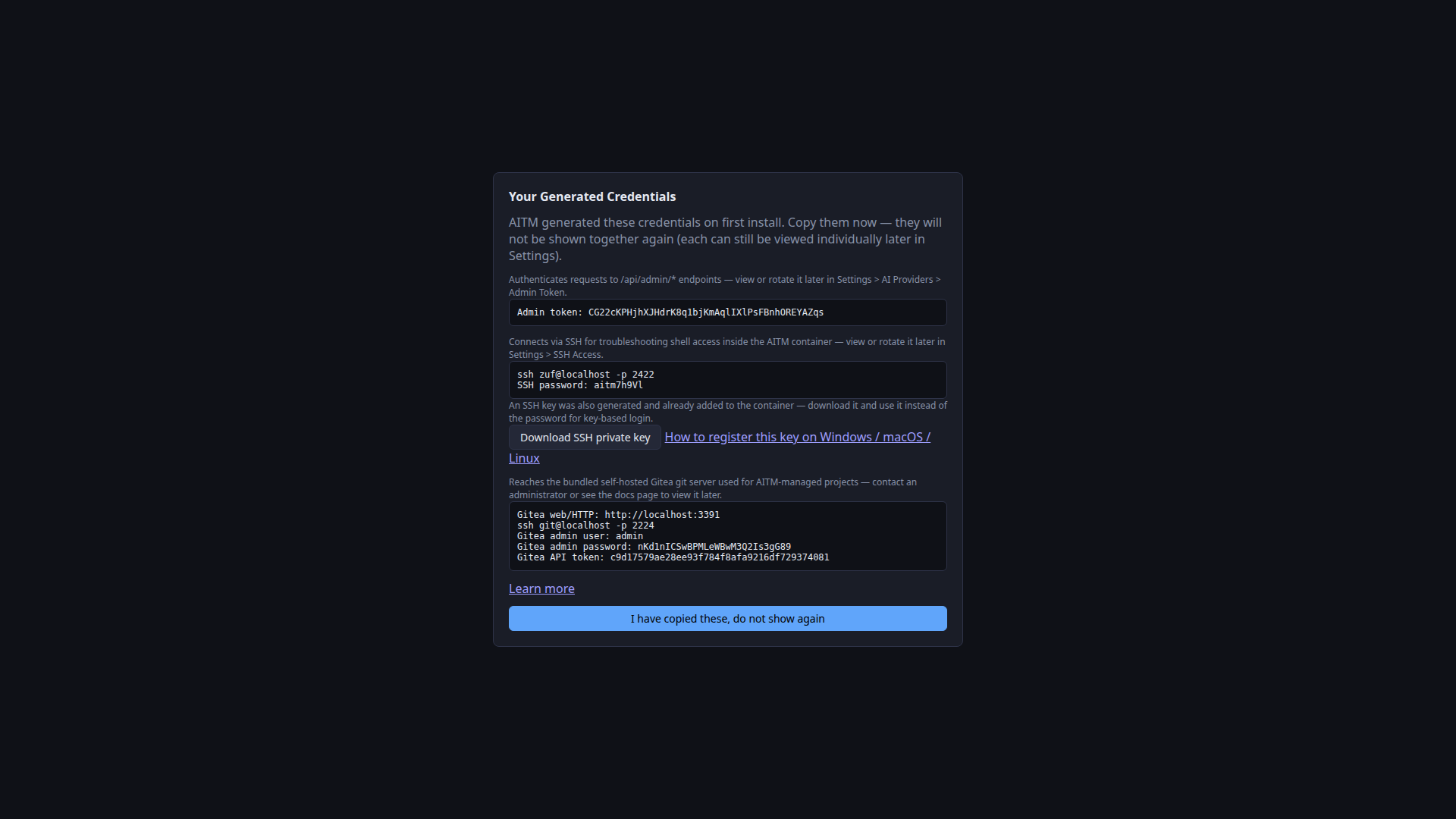
It lists the Admin token (for /api/admin/* and Settings → AI Providers), the SSH connect command and password for the troubleshooting shell, a Download SSH private key button linking to a key-registration guide (key-based login also works and the key is generated automatically), and the bundled Gitea server's web URL/SSH command/admin credentials/API token. "I have copied these, do not show again" dismisses the modal — every value can still be viewed individually later in Settings.
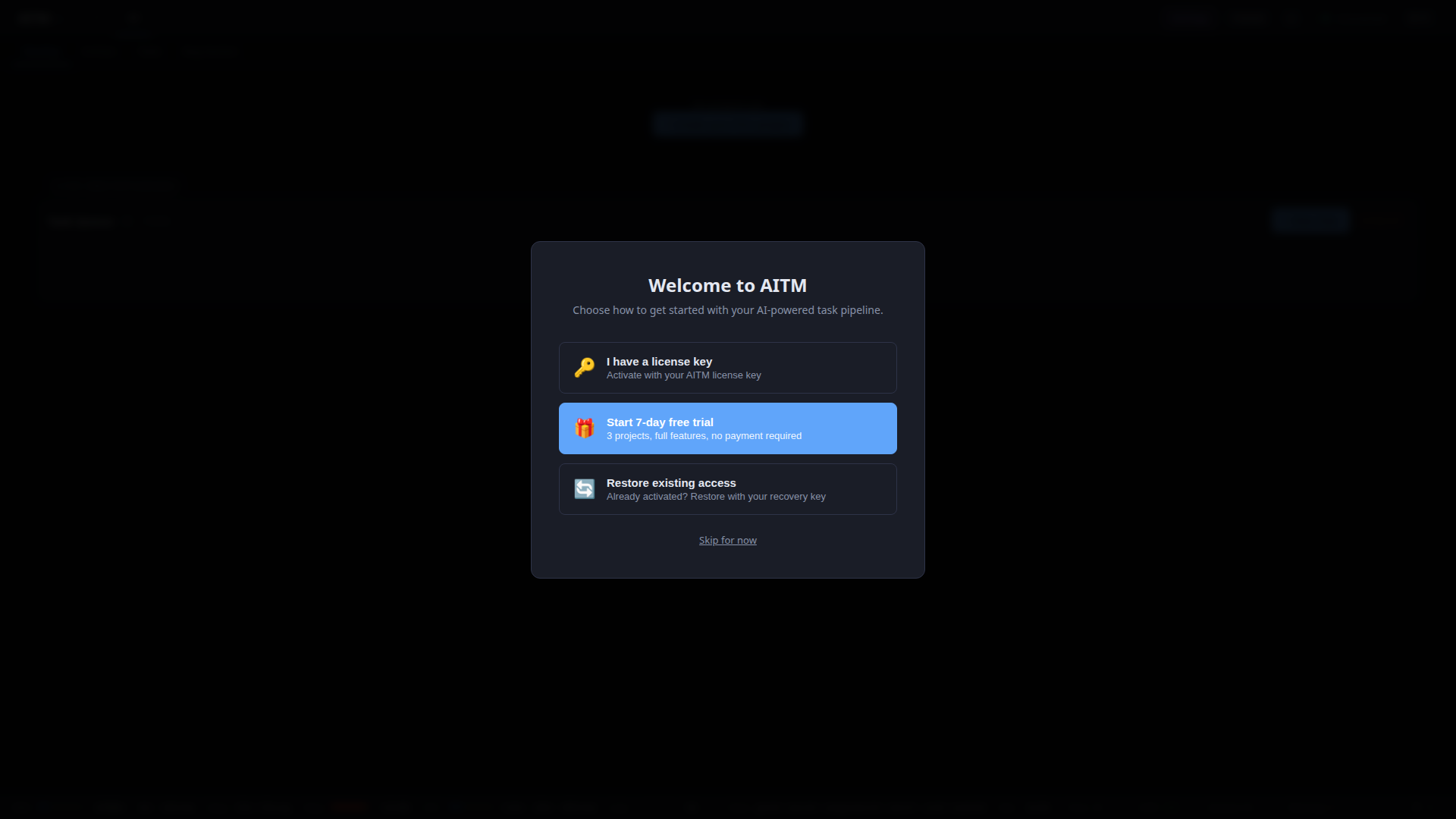
Next comes the Welcome overlay with three choices: I have a license key (activate with an existing key), Start 3-day free trial (2 projects, full features, no payment), and Restore existing access (recovery key); or Skip for now.
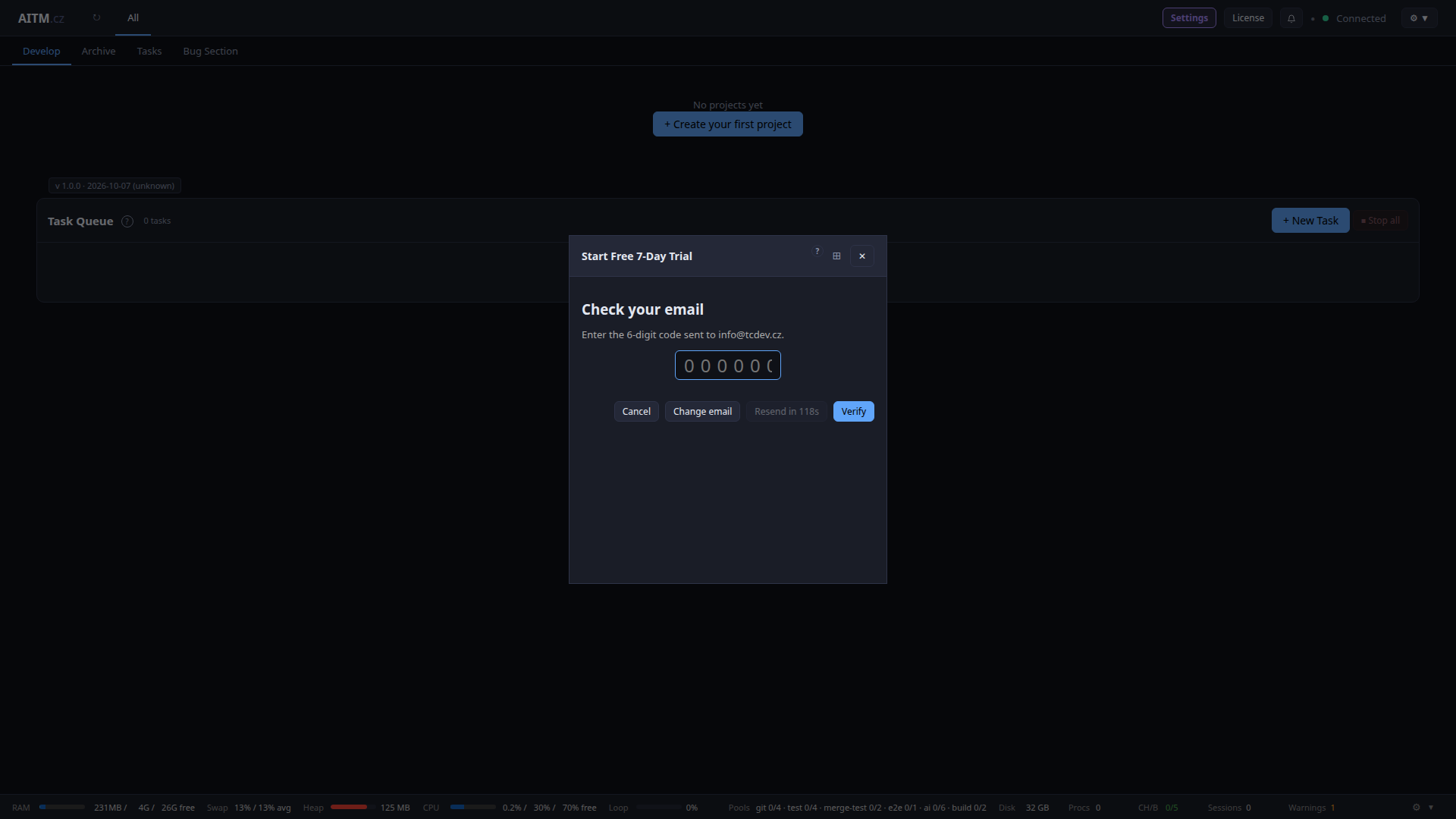
For the trial, enter your email twice, accept the Terms of Service and click Send Code. A 6-digit code arrives by email; enter it here and click Verify.
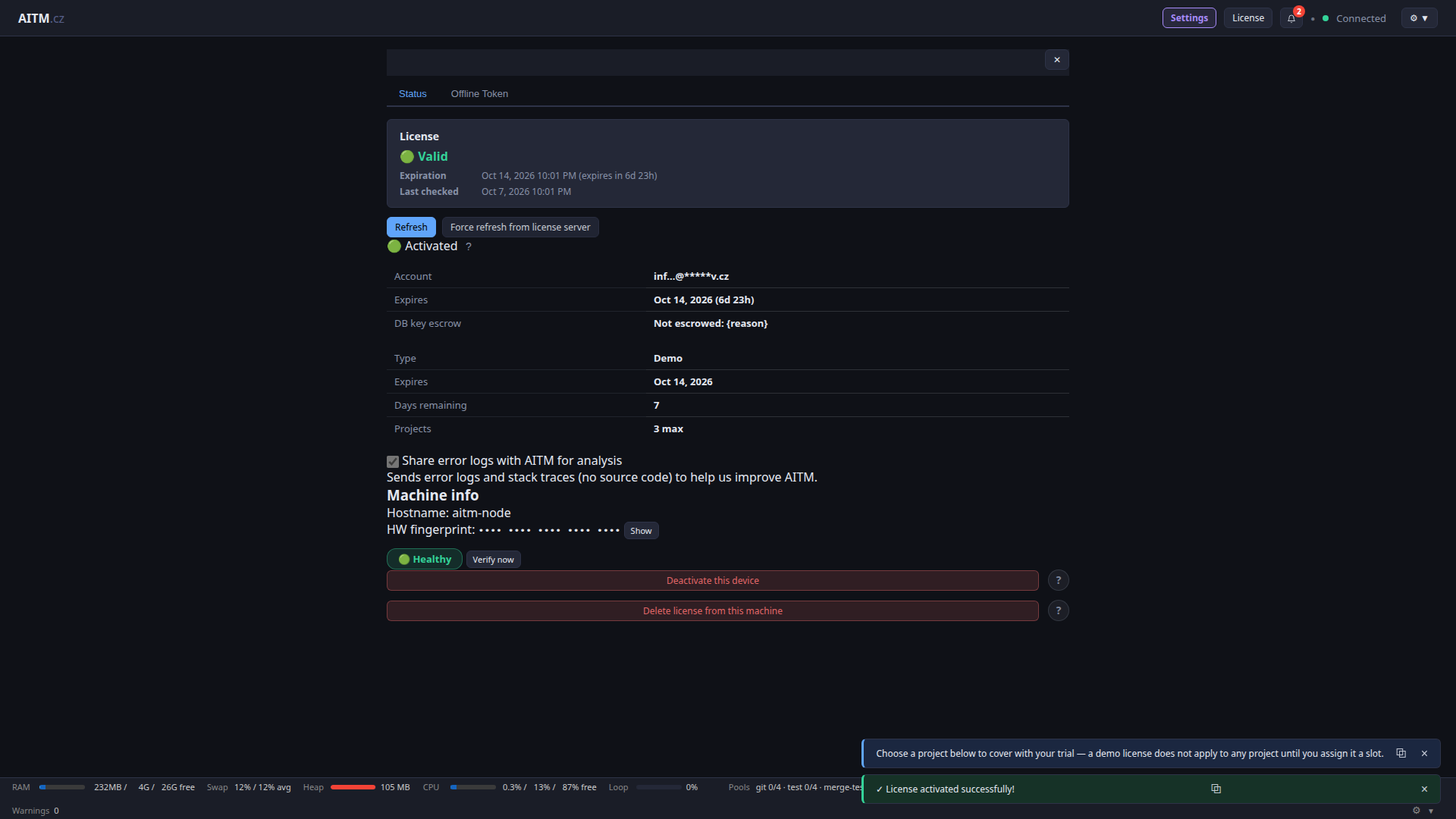
After verification you land on the license status screen: valid/activated, Demo type, expiration countdown, days remaining, project count (max 3 for the demo), machine info, and Deactivate this device / Delete license from this machine actions.
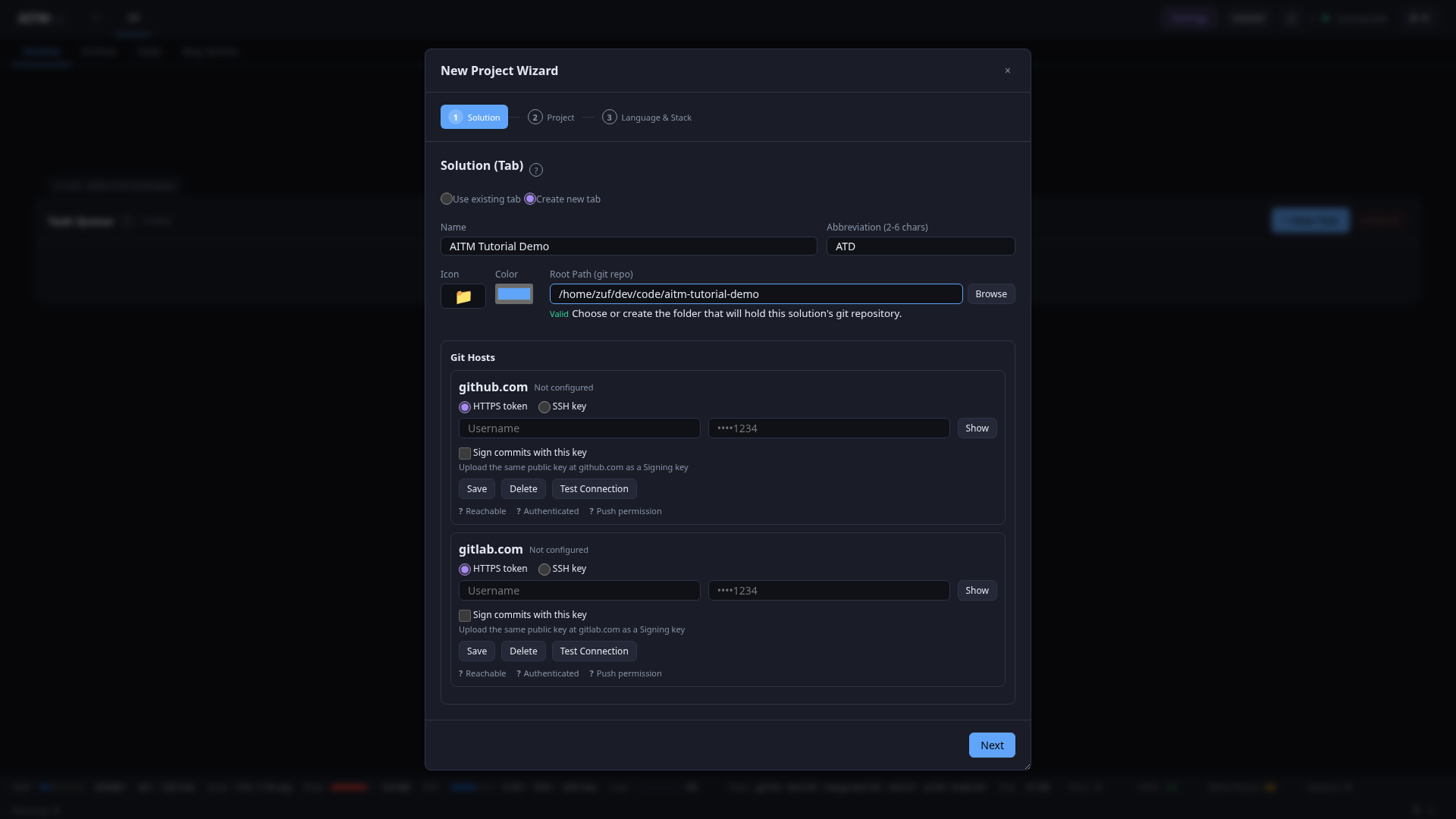
11. The New Project Wizard
Instead of filling in Settings → Projects by hand, you can add a new project through a 3-step wizard plus a review screen.
Step 1 — Solution: use an existing tab or create a new one (Name, Abbreviation, 2–6 characters, required), set the Root Path (a git repository, with a Browse button) and optionally Git Hosts credentials (github.com/gitlab.com) for push targets.
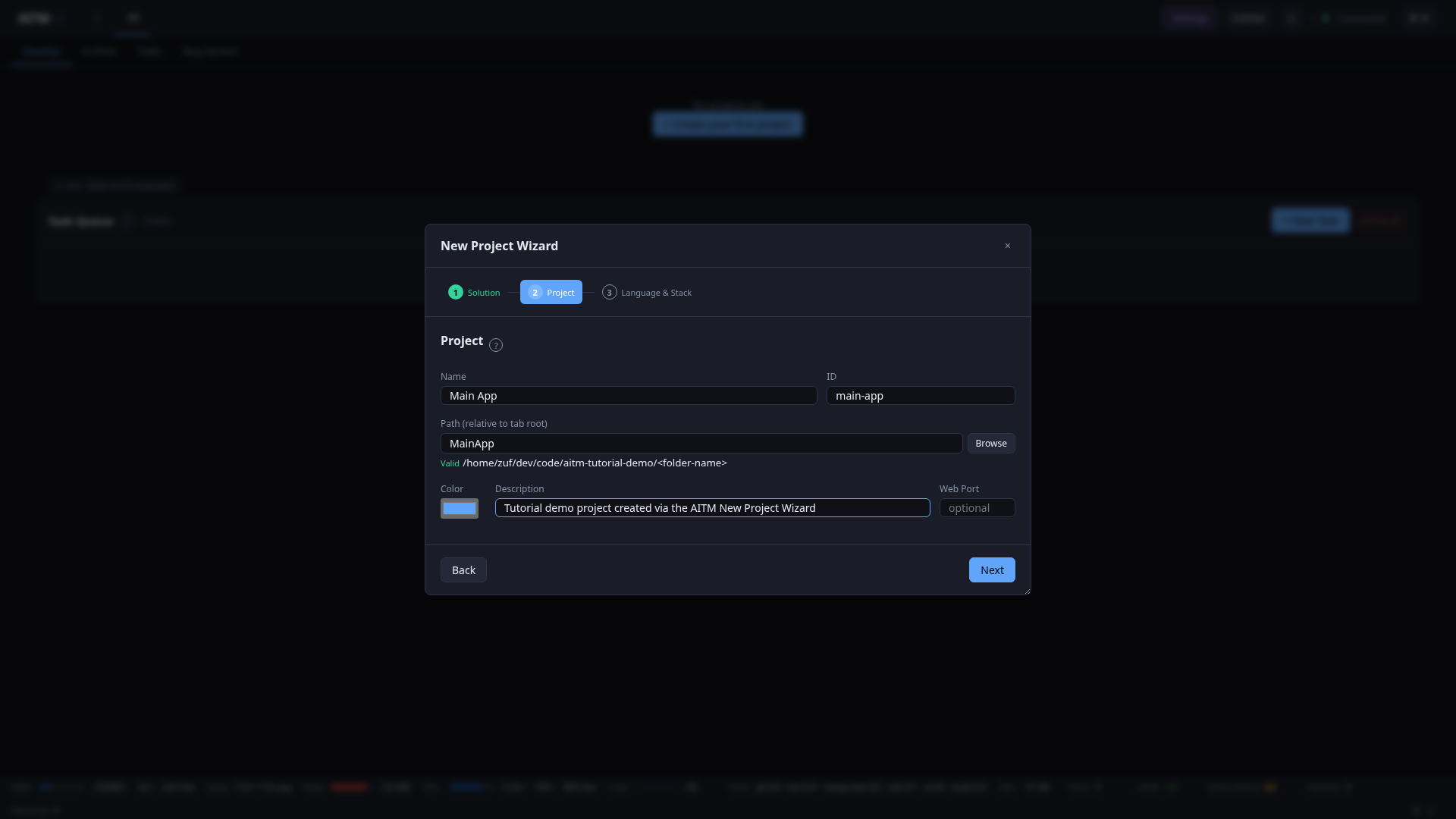
Step 2 — Project: Name, an auto-generated ID, Path (relative to the tab root), Color, Description, and an optional Web Port.
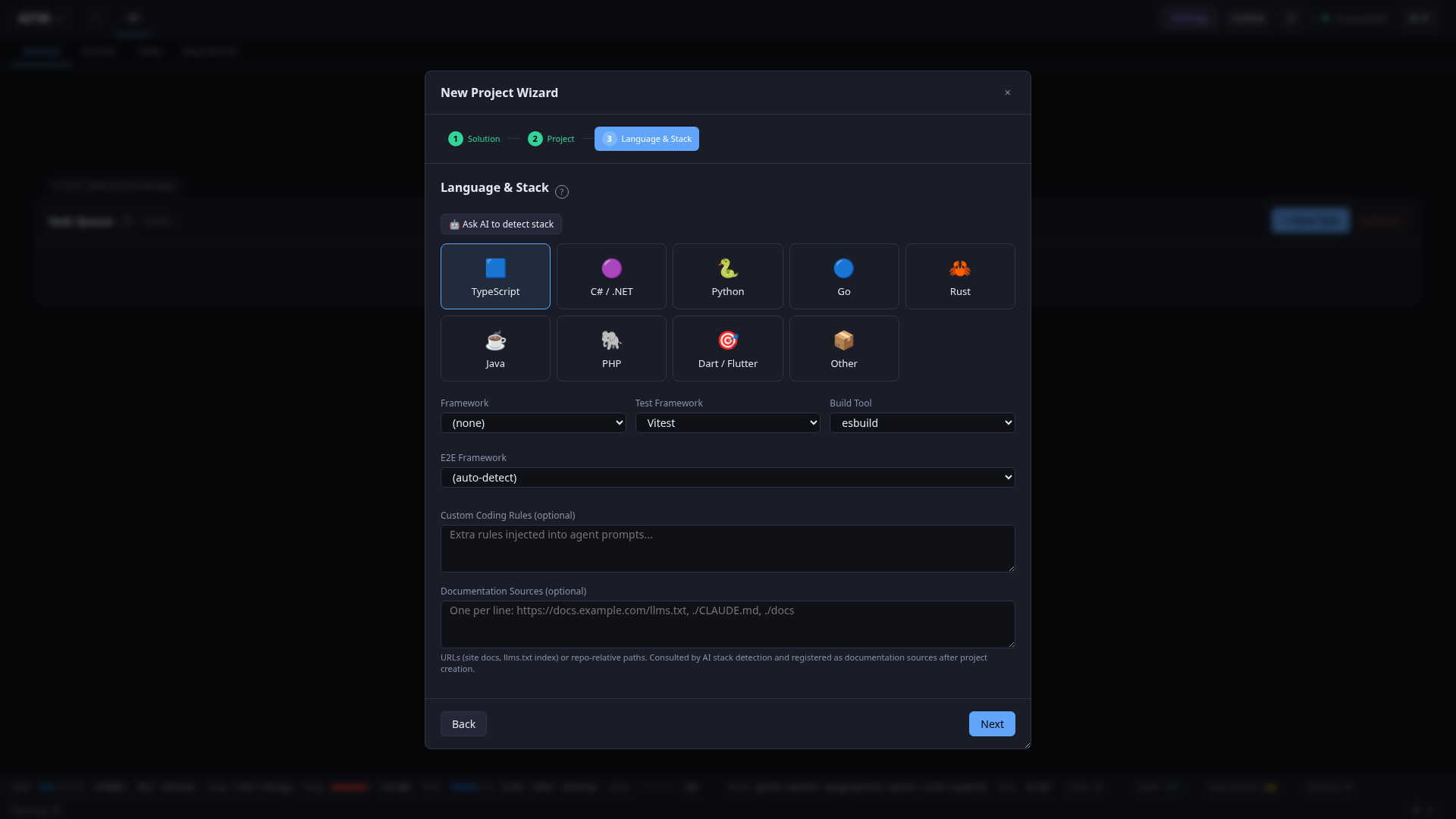
Step 3 — Language & Stack: pick a language (TypeScript/C#/.NET/Python/Go/Rust/Java/PHP/Dart-Flutter/Other) or click Ask AI to detect stack. Then Framework/Test Framework/Build Tool/E2E Framework dropdowns, plus optional Custom Coding Rules and Documentation Sources (consulted by the AI stack detection).
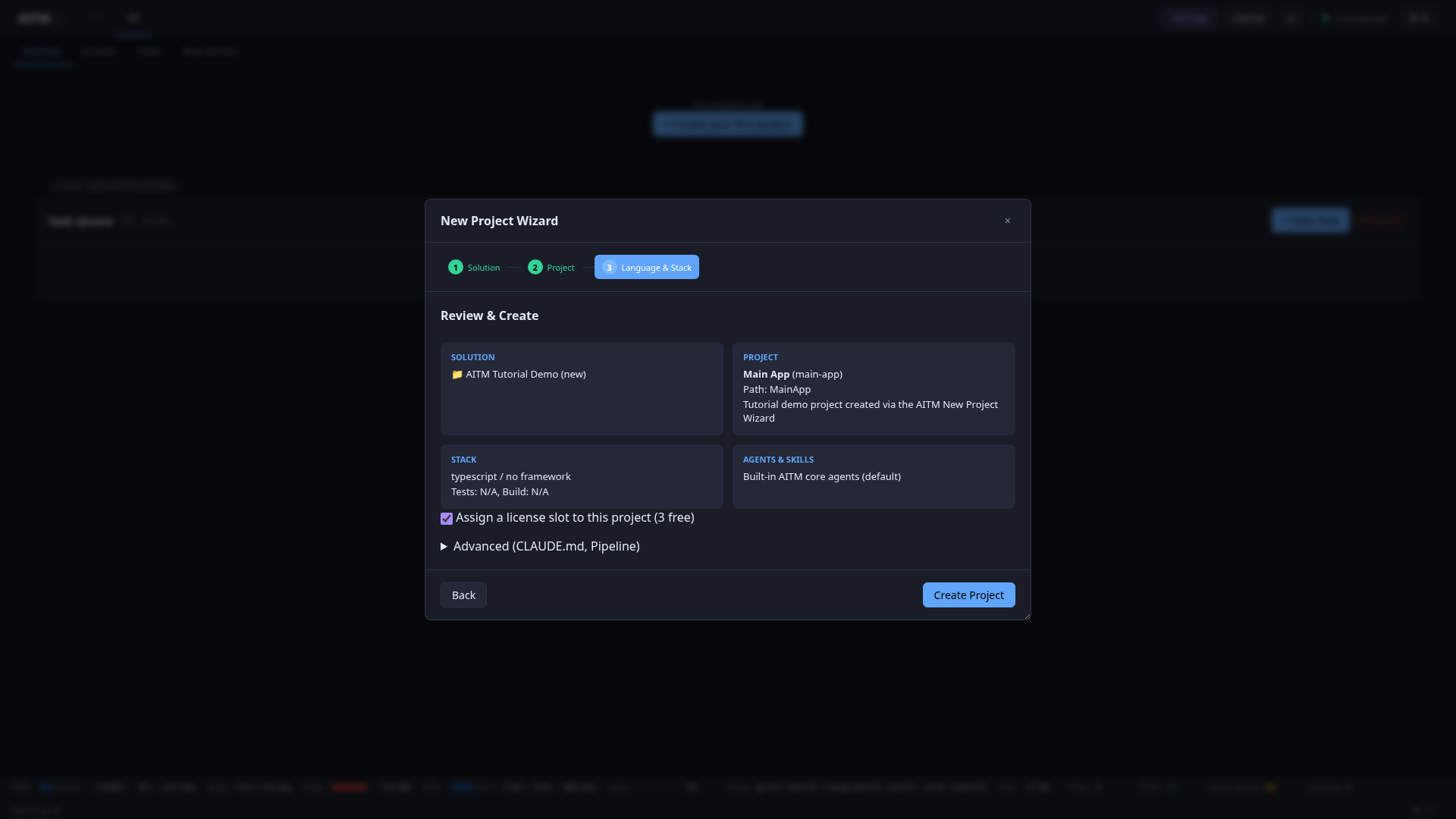
Review & Create: summary cards for Solution/Project/Stack/Agents & Skills, an Assign a license slot to this project checkbox (each project under the license consumes one project slot), a collapsible Advanced (CLAUDE.md, Pipeline) section, and the final Create Project button.
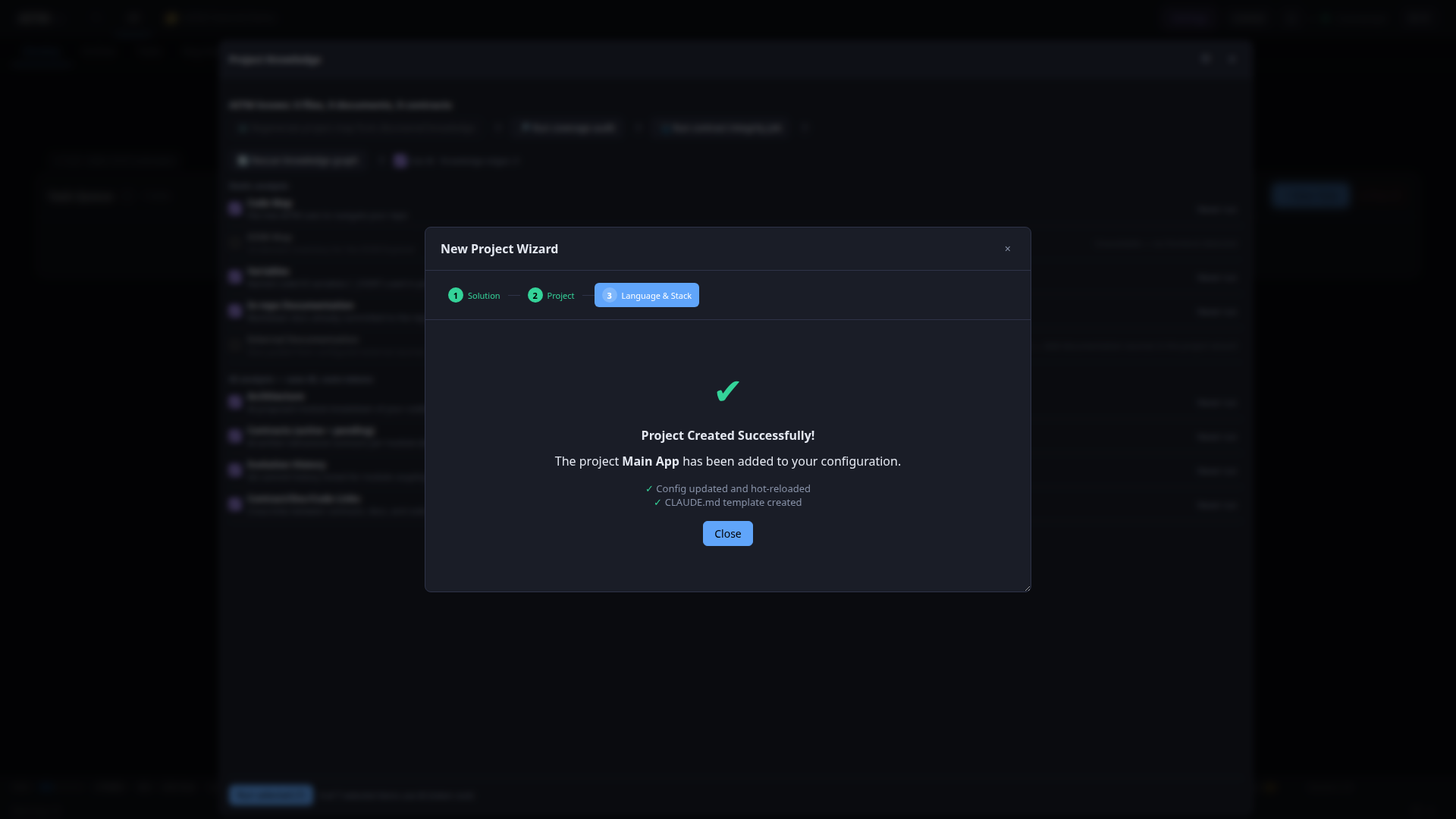
Clicking Create Project confirms on a success screen that the configuration was updated and hot-reloaded, and that a CLAUDE.md template was created for the new project.
Quick verification
- Header shows Connected (green dot) and no orange licence banner.
- Settings → AI Providers → Test on the Claude card returns OK.
- Your project card on the Develop view shows the right branch (
dev) and path. - Create a tiny task and watch it go
pending → running → finished → archived. If it does, everything on this page is right.
Tips
- If a task never leaves
pending, check the licence banner and the Max concurrently running tasks setting above before looking anywhere else. - Without
claude auth loginor an API key, every AI step fails immediately — verify that first. - Not sure where a setting lives? The "Where" column in the tables above points to the exact Settings tab.