Settings is where you configure which AI providers AITM uses, how each pipeline step behaves, and how the app manages its own resources and reliability.
Settings
Main sections
- Projects & Memory — tabs, projects, and permanent instructions for the AI.
- AI & Models — default provider and models for the pipeline, Chat, and Brainstorm.
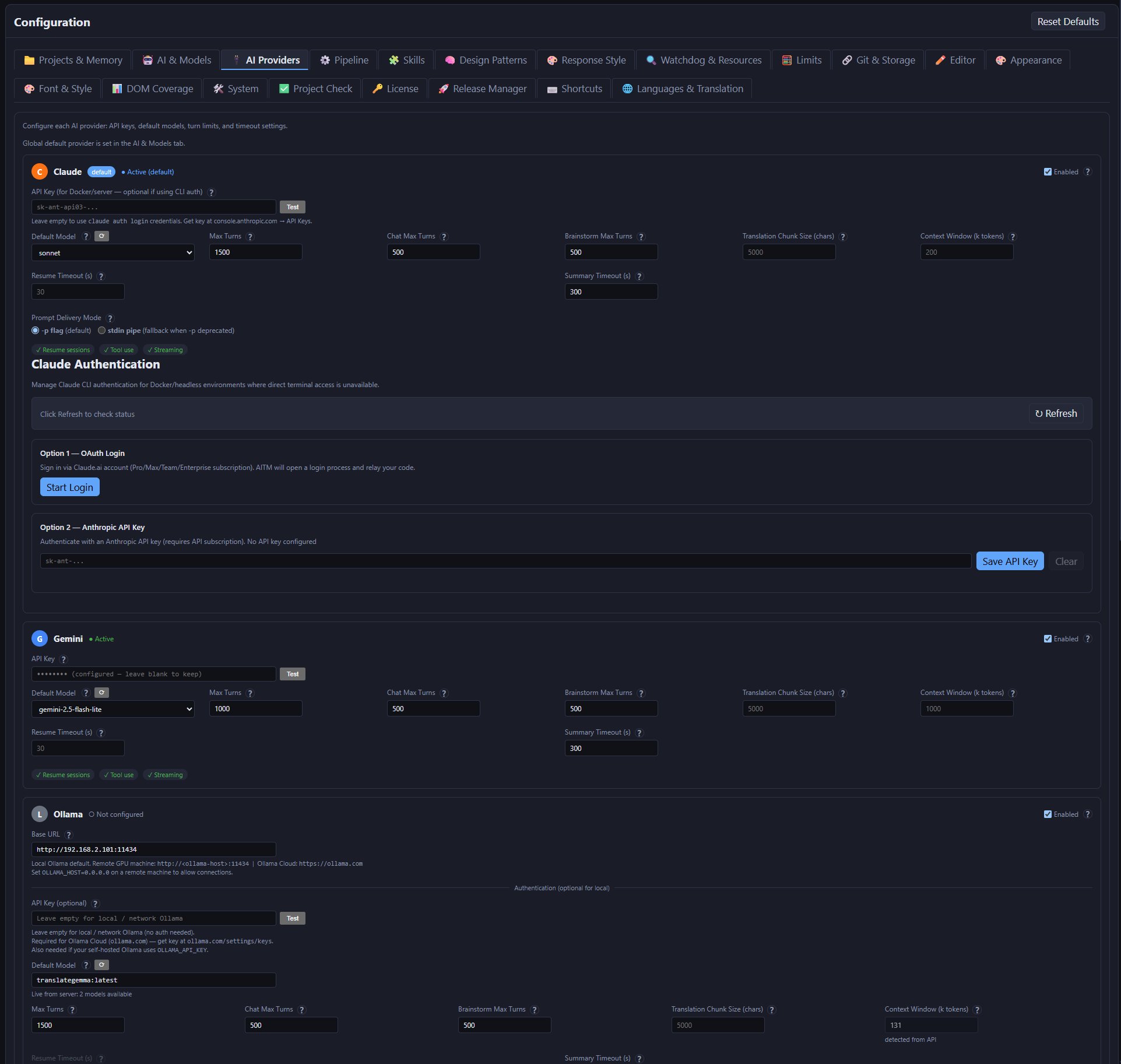
- AI Providers — one card per provider: Claude, Gemini, DeepSeek, OpenAI, NVIDIA, Ollama and Web Chat (Playwright).
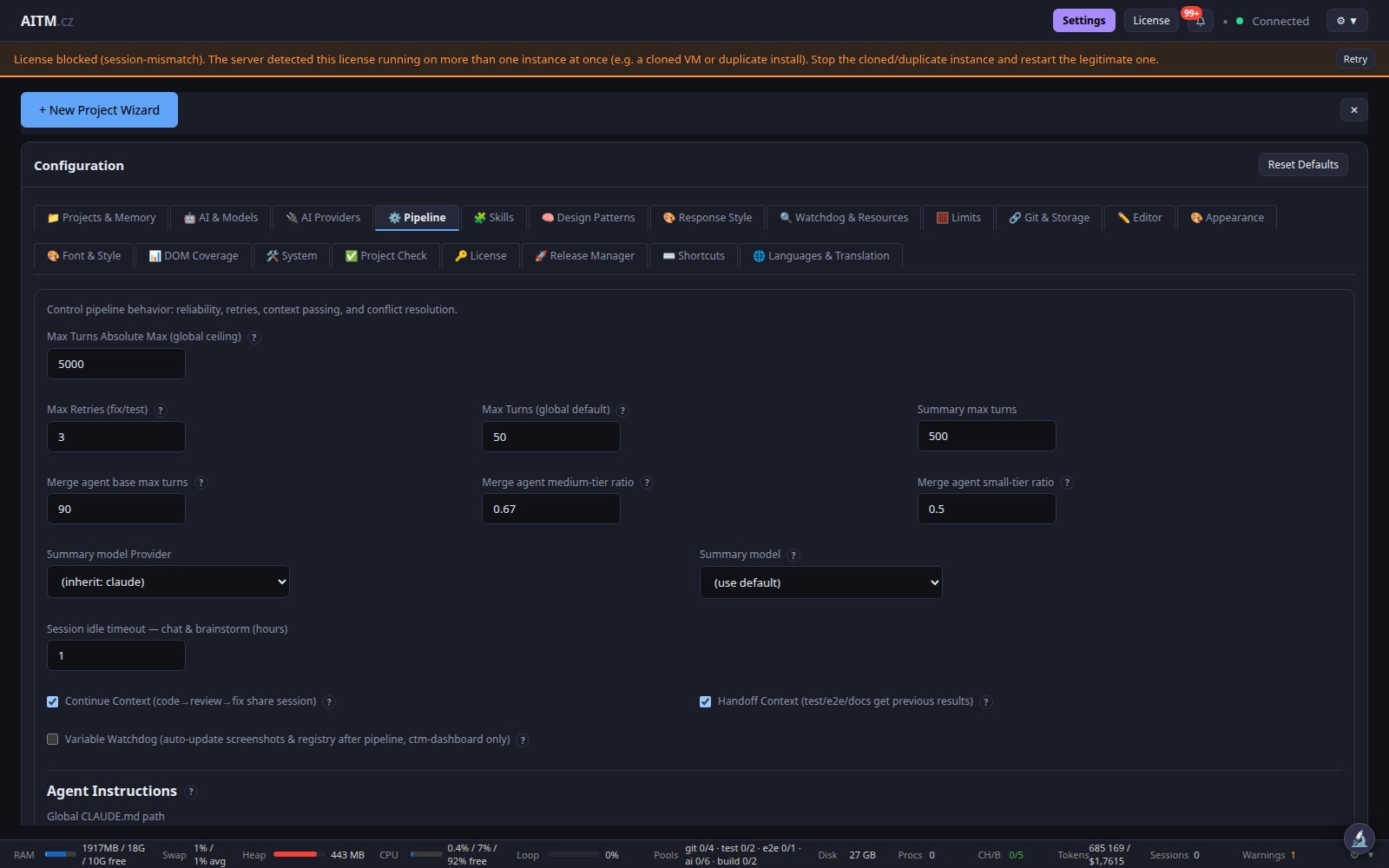
- Pipeline — max retries, turn ceilings, merge-agent budgets, Max concurrently running tasks, parallel tasks per tab, context passing (Continue / Handoff), Global Projects.md path (one instruction file injected into every project's pipeline), full-test toggle, post-merge auto-fix attempts.
- Skills — reusable convention cards for the AI.
- Design Patterns — preferred design patterns for generated code.
- Response Style — tone and format of AI responses.
- Watchdog & Resources — Disk Janitor retention, Disk Watchdog GB budgets, test CPU/RAM reservations.
- Limits — token and size caps for contract injection, docs indexing and translation chunks.
- Git & Storage — push remote, restart after self-merge, backups.
- Editor — behaviour of the built-in code editor.
- Appearance — dashboard theme and layout.
- Font & Style — typography and styling preferences.
- DOM Coverage — tracked UI element coverage for frontend projects.
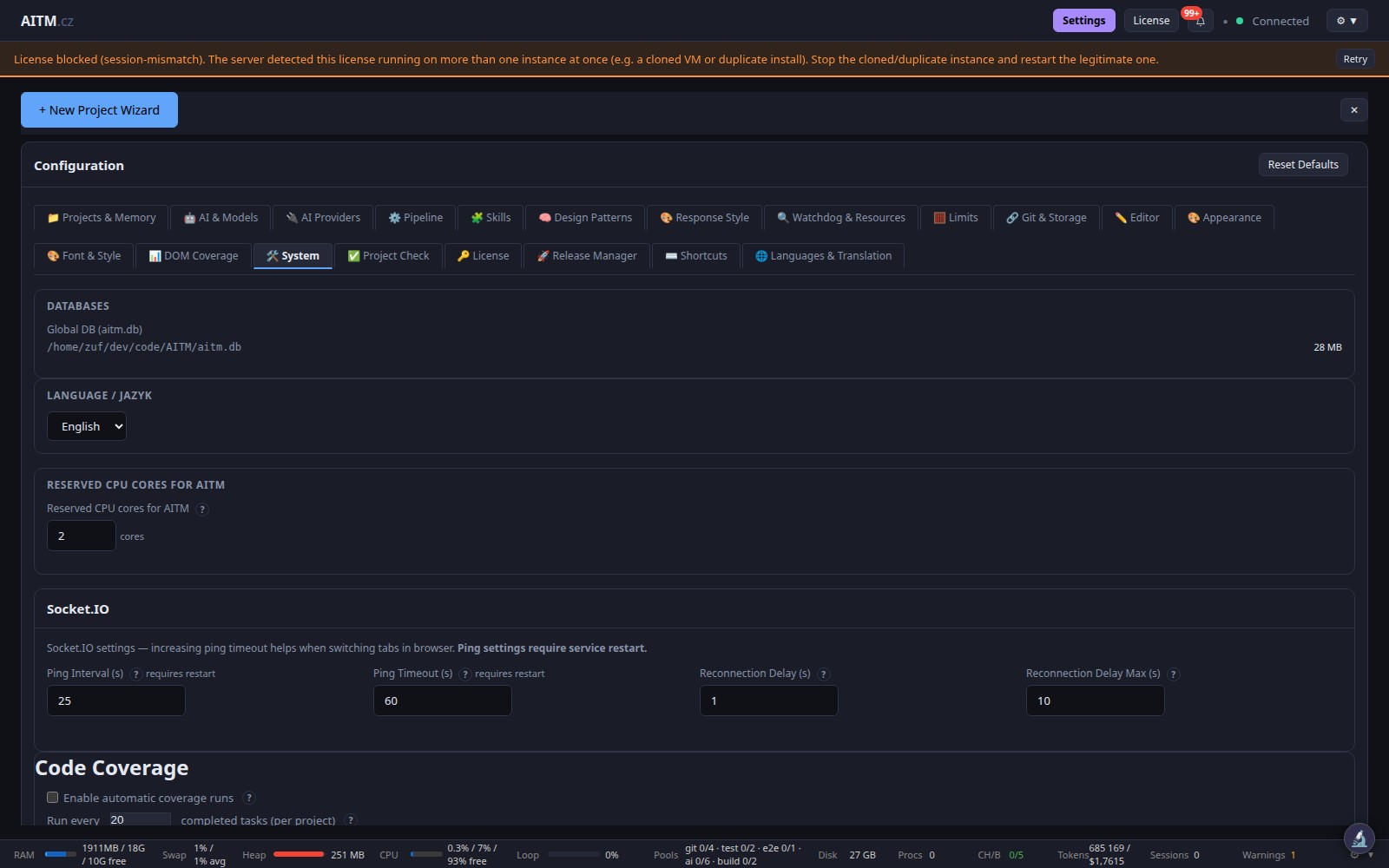
- System — swap size, reserved CPU threads, day/night CPU profiles, tmp sweeper, CORS allowed origins.
- Project Check — project health checks.
- License — licence activation and project slots.
- Release Manager — release management and sync.
- Shortcuts — dashboard keyboard shortcuts.
- Languages & Translation — interface language, UI text translation and task content translation.
Open Settings with the Settings button in the header; all 20 tabs sit in one row at the top of the Configuration panel, in the order listed above. Per-project overrides (model, e2e failure mode, verify policy, environment variables) live inside the project's own card in Projects & Memory and always win over the global value.
For the full must-do checklist before you start working, see Setup Essentials.
AI providers and API keys
The AI Providers tab has one card per provider — with an Enabled checkbox, a status label (Active / Not configured), the API key or address with a Test button, the default model, and turn limits and timeouts. You can configure more than one provider and mix them across pipeline steps.
- Claude — Anthropic's models; the default provider. Works through the locally logged-in Claude CLI or an API key; the card also offers an OAuth login for Docker/headless servers.
- Gemini — Google's models, API key.
- DeepSeek — DeepSeek's models, API key.
- OpenAI — OpenAI's GPT models, API key.
- NVIDIA — open models hosted by NVIDIA, API key.
- Ollama — models you host yourself (or Ollama Cloud). You enter a Base URL instead of a key; the API key is optional.
- Web Chat (Playwright) — drives a provider's web chat in an automated browser, no API key. It cannot use tools or run agent steps, so it is suited to simple conversations only.
Per-step model configuration and cost optimization
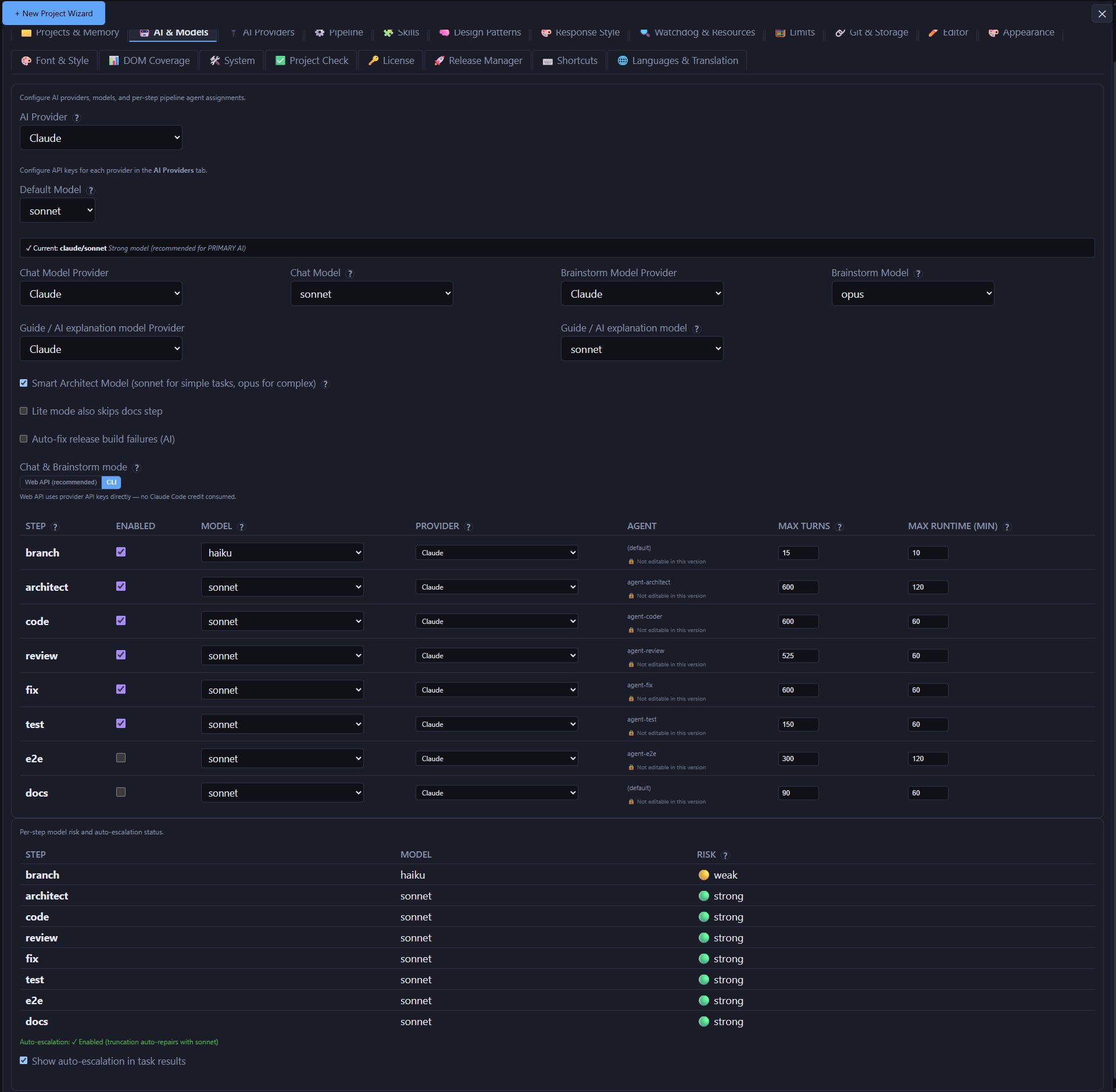
The AI & Models tab sets the global default provider and model, and the separate models used by Chat, Brainstorm, the guide and task summaries. Below that is the per-step table for Branch, Architect, Code, Compliance-check, Review, Fix, Test, E2E, Snapshot and Docs. Set Model, Provider, Max Turns and Max Runtime (min) where applicable. The seven standard AI steps are joined by Compliance-check, which runs an isolated AI check only for complex tasks. Branch and Snapshot are automation; Verify and Chain-audit have no model row. This is the key to controlling cost: point expensive, high-reasoning models at the steps that need judgment — typically Architect — and route cheaper or local models to steps that are mostly mechanical, like running tests.
Turn limits (maxTurns)
A turn is roughly one step of an agent thinking/acting — reading a file, editing a file, running a command. More turns generally mean a more thorough attempt, at the cost of more time and (for paid providers) more cost. A global ceiling caps how high any single step's turn limit can be set, as a safety net against a misconfigured or runaway task consuming unbounded resources.
API | WEB toggle
The Chat and Brainstorm panels have an API | WEB toggle: API mode calls the provider's programmatic API using your configured key; WEB mode opens the same conversation in the provider's own web chat UI (e.g. Claude.ai), for web-subscription users who don't want to pay for API access separately.
Watchdog timeouts and reliability presets
Configure how long a step can run before the watchdog considers it stuck, and choose a reliability preset that trades off speed against how aggressively AITM retries failed or stuck steps.
Resource monitoring and concurrency
AITM shows live CPU/memory usage. How many tasks run at the same time is set in Settings → Pipeline → Max concurrently running tasks and depends on your machine's CPU and memory. Don't confuse this with license slots: a slot is a project under the license, not a running task — see Licensing.
Project Check tab
The Self-Check diagnostics that used to run inline on the main Settings view now live in their own dedicated Project Check tab. Use it to verify a project's health — git status, worktree state, database integrity, and other pre-flight checks — without cluttering the main Settings screen. Open the Project Check tab whenever a pipeline task fails unexpectedly or before kicking off a large batch of tasks, to confirm the project is in a clean, working state first.
Day/night CPU profiles and core reservation
Settings lets you define separate day and night CPU profiles so AITM automatically throttles or opens up how much CPU pipeline subprocesses may use depending on the time of day — for example, staying conservative during working hours and running full-speed overnight. Each profile's CPU allowance is enforced on subprocesses via AllowedCPUs confinement, so pipeline work cannot spill onto cores you want reserved for other use. AITM also reserves one or more CPU cores dynamically for its own core process (via systemd's AllowedCPUs), guaranteeing the AITM server itself stays responsive even when pipeline subprocesses are maxing out the rest of the machine.
Swap size management
Builds and tests can produce short, heavy memory spikes. The System tab therefore shows the current swap size and usage and a recommended size computed from your total RAM and free disk space. Accept the recommendation with one click (Use recommendation) or type your own target size; the value is saved immediately. Apply resizes the swap to the target size and shows the progress. The button is enabled when AITM is able to resize swap on this host; when it is not, it stays disabled and the panel shows the exact sudo commands to run by hand (and, if only a permission is missing, the line to add so that Apply works next time).
CORS allowed origins
If you open the dashboard from another machine under a host name, the browser's address (origin) must be allowed. localhost and private LAN addresses are always allowed automatically. For anything else, the System tab has CORS Allowed Origins — exact addresses such as http://myhost:3333, one per line — and CORS Allowed Origin Patterns for host names with wildcards such as *.local or 192.168.1.*. AITM must be restarted for a change to take effect.
Table font size
Font & Style contains sliders for the application's font sizes — the overall app UI size, modal content, chat and brainstorm output, and the Dev Panel. The Table font (row text) slider sets the row text size of tables across the dashboard; header and button sizes in tables follow it automatically. Reset all to defaults puts everything back, and you can export and import your whole appearance setup.
Languages & Translation
- Interface language — Primary language (AI communication) is the language AITM talks to the AI in; Secondary language (display) is the language you read and write. You can add further languages by code. The programming language is always English.
- UI text translation — which AI provider and model translate interface texts, a Test connection button, a timeout, the option Translate my messages to primary language before sending, the Language Mode and Edit translations for correcting individual texts.
- Content translation — Target Languages for task content, a Default Response Language, Translation Timing (immediately when a task finishes, or on demand), Task Detail Auto-Translate, the call mode (Direct API or CLI), the provider and model used, and Translate Archive for translating all archived tasks of the current project in one go (this can consume a lot of AI credit).
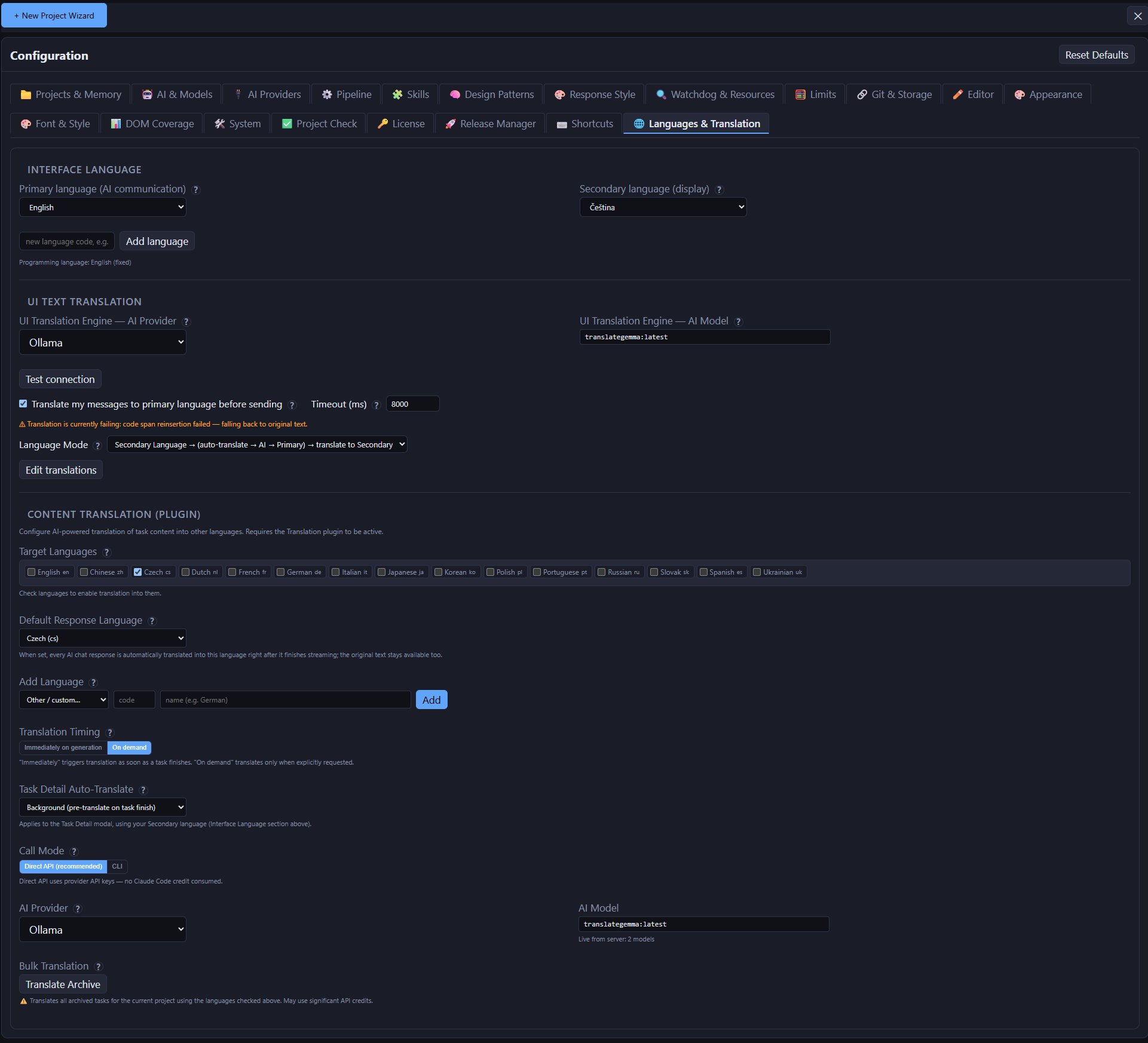
AI-translate for secondary languages
If you add a secondary UI/help language that isn't fully supported yet, Settings offers an AI-translate button that machine-translates missing UI and help strings into that language using your configured translation model, instead of leaving them blank or falling back to English. A companion Test connection check lets you verify the configured translation model is reachable and responding correctly before you commit to translating your whole string set — catching a bad API key or unreachable endpoint immediately rather than after a large translation run fails.
Paginated translation editor with search
The translation editor for UI/help strings is now paginated, so large string sets stay fast and manageable instead of rendering every row at once. A search box over the English (EN) column lets you quickly find the row you want to edit or verify by typing part of the original English text, rather than scrolling through pages of translations.
Backup and per-project overrides
Back up your AITM configuration and task history, and override global settings (models, timeouts, reliability) on a per-project basis when one project needs different treatment than the rest.
Tips
- Put your most capable model on Architect and Review — those steps benefit the most from strong reasoning.
- Use a cheap or local model for Test/E2E steps where the work is mostly mechanical execution, not judgment.
- If a project has unusual needs (very large codebase, stricter tests), use a per-project override instead of changing global defaults.